 Templates Primeiros passos · Passo 3
How to create a template
Design one canvas that renders a different ad image per product: binding text to catalog fields, the {field|fn} placeholders, showing and hiding layers per product with rules, previewing against real products, multiple sizes and the primary size, removing a background while designing, and why saving a template makes channels re-crawl the images of every size you changed.
Este guia ainda não está traduzido; mostramo-lo em inglês.
- 1 How to add a catalog
- 2 How to create catalog sets
- 3 How to create a template
- 4 How to create a feed
- 5 How to publish your feed
A template is a design you make once, which becomes a different image for every product in your catalog. You place a headline, a price and a photo; we render one image per product, with that product's headline, price and photo. Your feed then hands those image URLs to the channel.
That's the whole idea: one design, thousands of ads.
Creating one
Click Add template. You land in the Templates gallery, where you can either start from a pre-made design — pick one and click Edit this template — or click Use a blank template.

A blank template asks for three things:
| Field | What it's for |
|---|---|
| Name | Yours. |
| Catalog | Which catalog to preview against. |
| Catalog set | Which slice of it. |
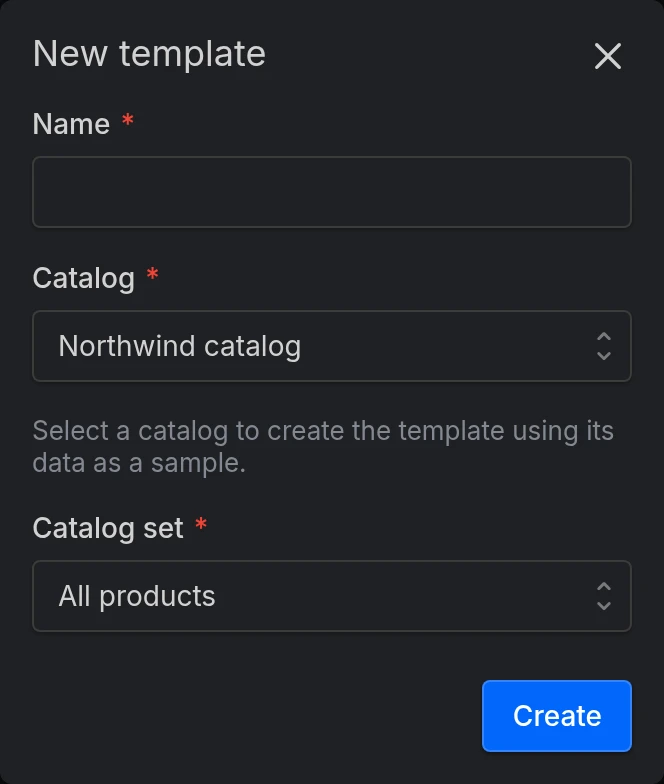
The catalog you pick here is sample data for designing, not a link that decides where the template gets used. Any feed can use any template; this just gives you real products to look at while you work.
Starting from the gallery skips that form: the template is created as New template with whatever catalog you had selected. Rename it in the editor's Settings panel.
New templates start as a single Square 1:1 canvas, 1080×1080.
Putting product data on the canvas
There are two ways, and they're for different jobs.
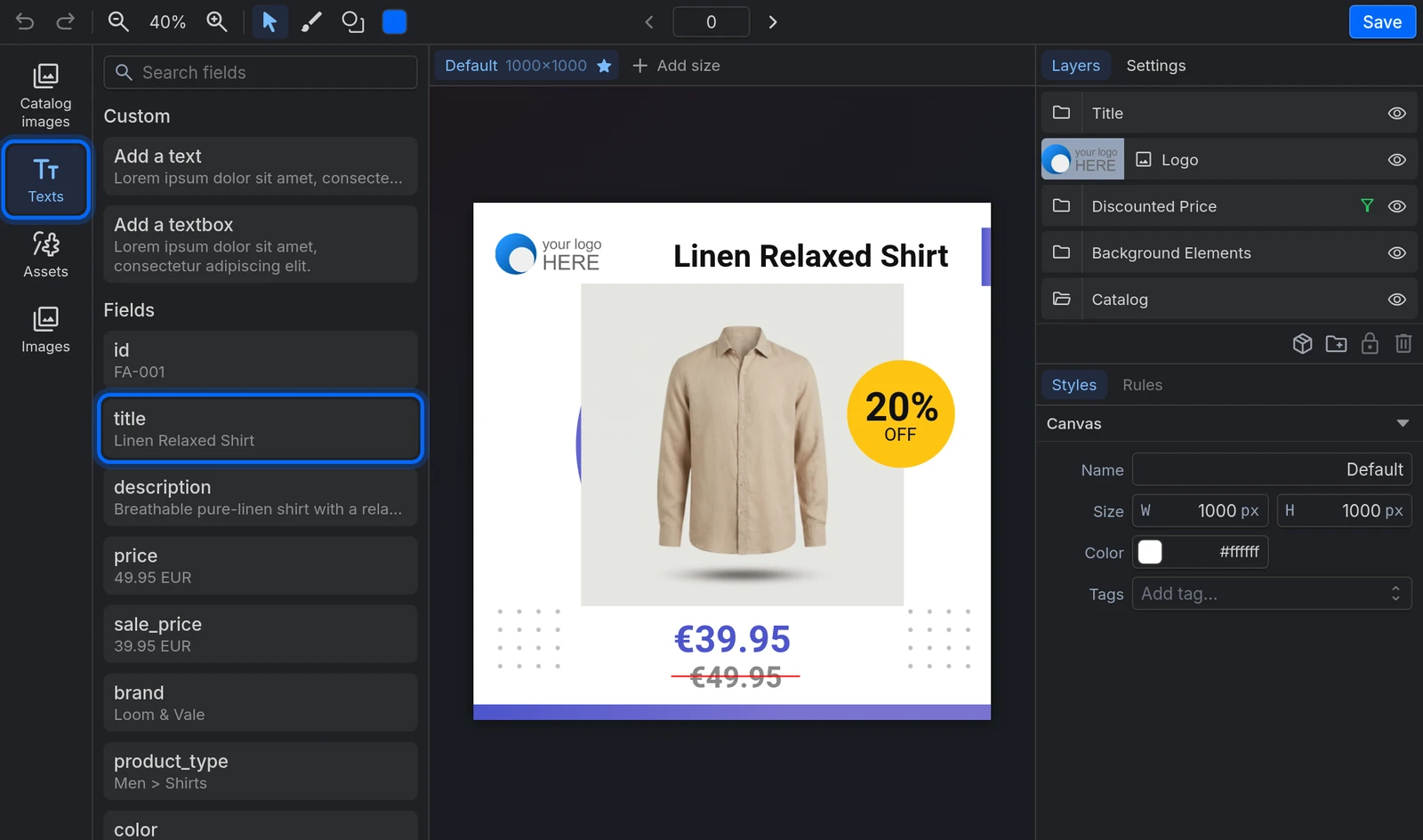
For a whole field on its own, open the Texts panel. Under Fields you'll see every catalog field with the current product's actual value next to it. Click one and it drops onto the canvas as text bound to that field. Every product renders its own value.
For a field inside a sentence, add a textbox and use + Add a feed field. That inserts the field as a chip you can click to open Edit field, where you can change the case, format a number to a locale, or fix the decimals. You get text like From {price|localeFormat:es-ES,2} — {brand} rendering as From 49,99 € — Nike.
A field that's empty for a product shows as its own name in the editor, and as nothing on the ad. A product with no
sale_priceshows the literal text{sale_price}while you design; the rendered image just leaves it blank — a badge with no price in it, a sentence with a gap. This is the single most common way a template goes wrong in production, because it works fine on the product you designed against.The fix is a rule on that layer — see below — and the way to catch it is to step through a few products with the arrows in the toolbar.
The product photo
Open the Catalog images panel. At the top is the Variable image: the photo each feed picks in its Media tab, through the Source field — the main photo in one entry, the second in another, all with the same design. It's the one you want almost every time, and a new template already starts with one.
Below it are the Fixed images, one per image field of the catalog. Each one always uses the same field for every product (for example, each product's second photo), whatever the feed picks. They're for designs that show several photos at once, for example a large variable photo with the second and third as thumbnails. Grids lay out several fixed photos across the whole canvas, replacing any product photos already on it.
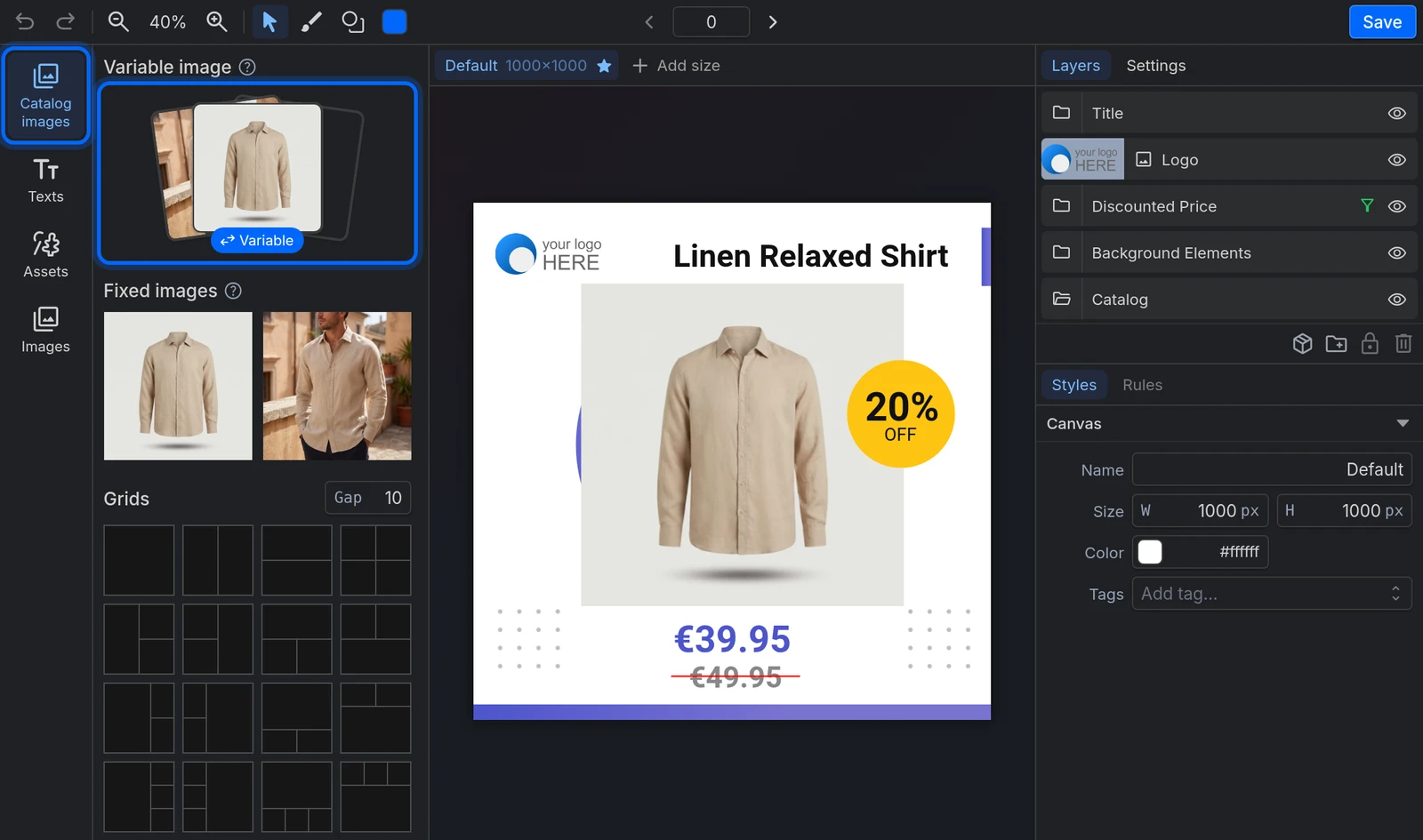
To change an image that's already on the canvas, use Source in the Styles panel: Variable or Fixed and, for a fixed one, which Field. While you design, a new variable image shows the product's first photo; one that was fixed keeps showing its field's.
Showing and hiding things per product
Select a layer or a folder and open the Rules panel. It answers one question: should this be visible for this product?
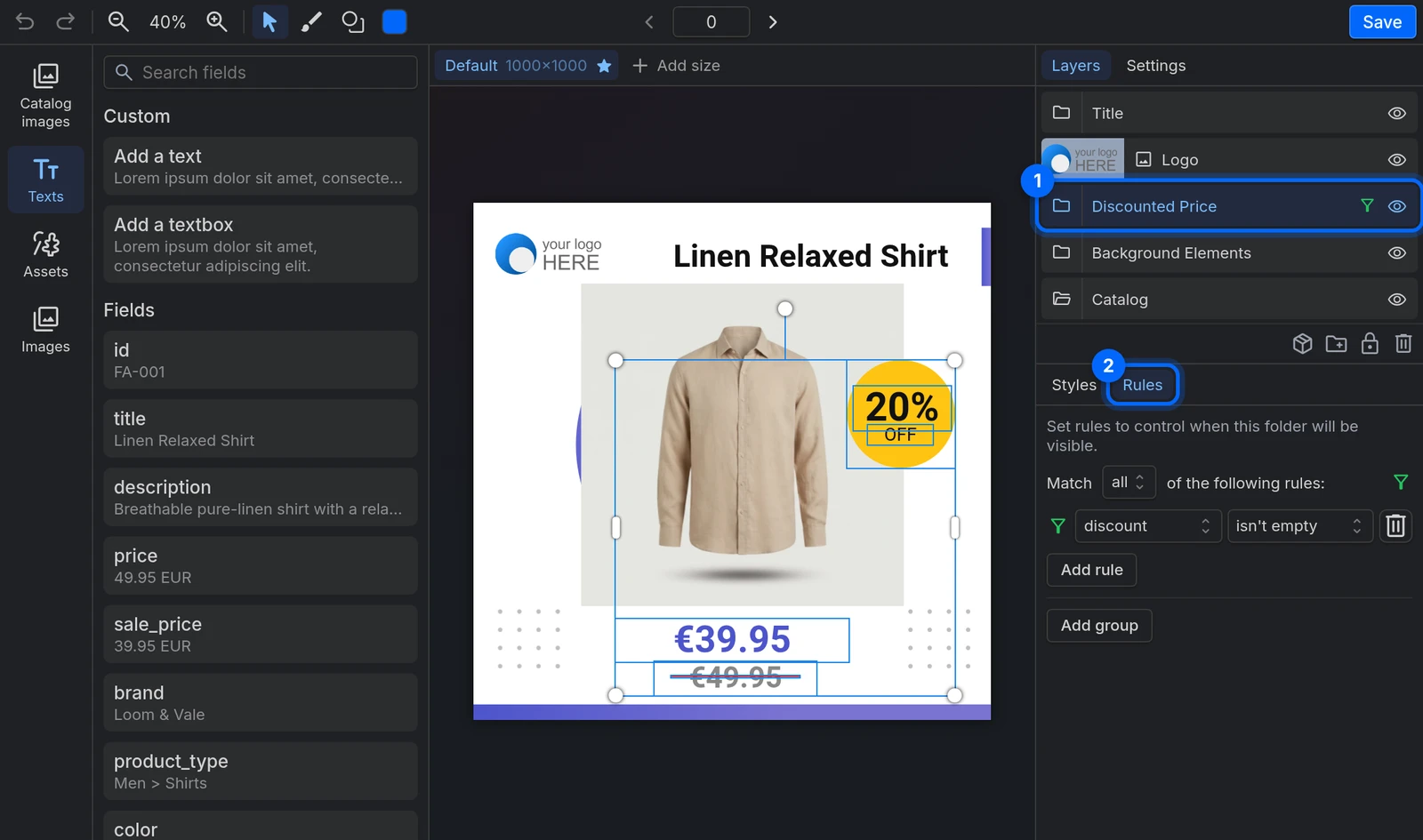
Set rules to control when this layer will be visible — for example, only show the "SALE" badge when sale_price isn't empty. That's also the answer to the empty-field problem above: hide the layer instead of rendering it empty.
Each rule shows live whether it passes for the product you're previewing, which makes it easy to check.
These are not the same as the rules on your catalogs and feeds. Those transform data. These only show and hide parts of a design.
Checking your work
The arrows either side of the number in the toolbar step through real products from your catalog set, and the whole design updates. Use them. A design that looks perfect on product #1 will show you its problems by product #20 — long titles, missing images, prices with four digits.
Several sizes in one template
A template can hold several canvases — one square for the feed, one 9:16 for Stories. Use the size tabs above the canvas and Add size, then pick a preset (Square 1:1, Reels/Story 9:16, Portrait 4:5, Landscape 16:9) or a custom one.
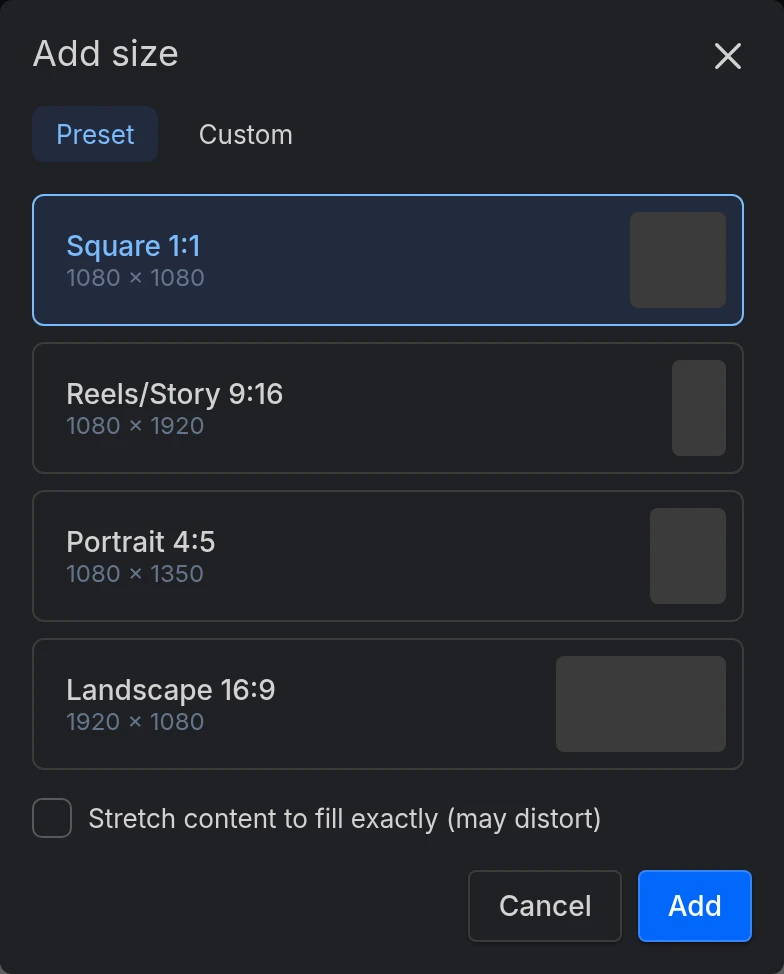
Each size is its own independent design. Adding one copies the current size's objects and rescales them — a starting point, not a finished layout. Review every new size.
Stretch content to fill exactly (may distort) does what it says. Left off, the objects are scaled to fit and you may get whitespace; on, they fill the frame and may look squashed. Neither is automatically right.
One size is the Primary size. That's the one a feed uses unless it asks for another.
Changing which size is primary rewrites the image URLs of the old and the new primary size in every feed using this template, and every entry that didn't pick a size switches to the new one. It's not a display preference — leave it alone once you're live.
The Tags field in the Canvas section of a size holds Meta's format tags. A 9:16 or 4:5 size gets its aspect-ratio tag (ASPECT_RATIO_9_16_PREFERRED, ASPECT_RATIO_4_5_PREFERRED) when you add it, and swaps it if you resize it to another ratio. When an image in a feed's Media tab picks this size, it takes these tags — those its channel accepts — and you can still change them there.
Removing a background while designing
Select a catalog image and use Remove background in the Styles panel. It runs in your browser, on that image, so you can see how the design looks against a cut-out product.
It's a preview. It isn't saved to your catalog and it doesn't reach a feed on its own — for that, use the Background remover section, which does it across a whole set with a review step.
The first use downloads the model, so it's slow once and fast afterwards. Speed depends heavily on your browser and hardware. If the image is already transparent, nothing happens — there's nothing to remove.
Fonts and brands
Besides a set of built-in fonts, the editor's font picker offers the ones in your project's Fonts section — upload or import them there first.
If text looks wrong the moment you open a template, reload the page. Fonts have to be ready before the canvas draws, and a slow font load is the usual cause.
Saving, and how it reaches a feed
Press Save. There is no autosave — get into the habit. If you close the tab or follow a link out of the editor with unsaved changes, it asks before letting you go.
To use a template, go to the feed's Media tab and pick it. Each image entry is a Source field — which product photo to use — plus a Template and, if the template has several sizes, a Size. Leave the template empty and the feed emits the original photo URL untouched. The source field is the photo that fills the template's variable image; if the template only has fixed images, the entry doesn't ask for one.

Saving a template changes every feed using it, immediately. There's no draft, no publish step, no per-feed approval. The image URLs of every size you edited also change, in every feed using that template, so channels re-crawl and re-render all of them. A size you didn't touch keeps its URLs.
Two consequences: batch your edits into one save rather than saving after every tweak, and don't rework a template right before a channel's scheduled fetch.
Common issues
| Issue | Solution |
|---|---|
The editor shows {price} instead of a price |
That product's field is empty, and on the ad it comes out blank. Hide the layer with a rule, or fill the data. |
| A design breaks on some products | Step through products with the toolbar arrows. Long titles and missing images are the usual culprits. |
| Text renders wrong when I open a template | The fonts hadn't loaded before the canvas. Reload. |
| A font isn't in the picker | Add it to the project's Fonts section first. |
| An image doesn't render | The catalog field is empty for that product, the template needs more image fields than the catalog has, or the image URL can't be fetched. |
| I don't see Remove background | The image is already cut out — it came from the Background remover. |
| I lost my work | There's no autosave. Save before leaving. |
| My feed's images didn't change after I edited the template | They did — feeds are built on request. If a channel is still showing the old ones, it hasn't re-crawled yet. |
| I set Tags on a size but Meta doesn't get them | An image takes them when its template or size is picked in the feed's Media tab; images set up before keep the tags they had. Add them on the image there. |
| I changed the primary size and everything re-crawled | That's expected — it rewrites the image URLs of both sizes involved. |
Pronto para experimentar?
Crie a sua conta e siga o guia com o seu próprio catálogo.