 Catalogs Getting started · Step 2
How to create catalog sets
Filter a catalog into a named set for your feeds: building conditions and groups, the two operators called "is equal to", why number filters treat blanks as zero, one variant per product, building a set with AI, and why an empty set makes channels delete your products.
- 1 How to add a catalog
- 2 How to create catalog sets
- 3 How to create a template
- 4 How to create a feed
- 5 How to publish your feed
A set is a named, filtered slice of a catalog: shoes under €50, everything in stock, one variant per product. You build the filter once, and every feed pointing at that set exports exactly those products.
Sets are free and unlimited. They don't copy your products — they just point at them — so ten sets over one catalog cost you nothing against your plan.
Creating a set
Open your catalog and go to the Sets tab.
Click Add set.
Give it a Set name.
Build your conditions.
Save.
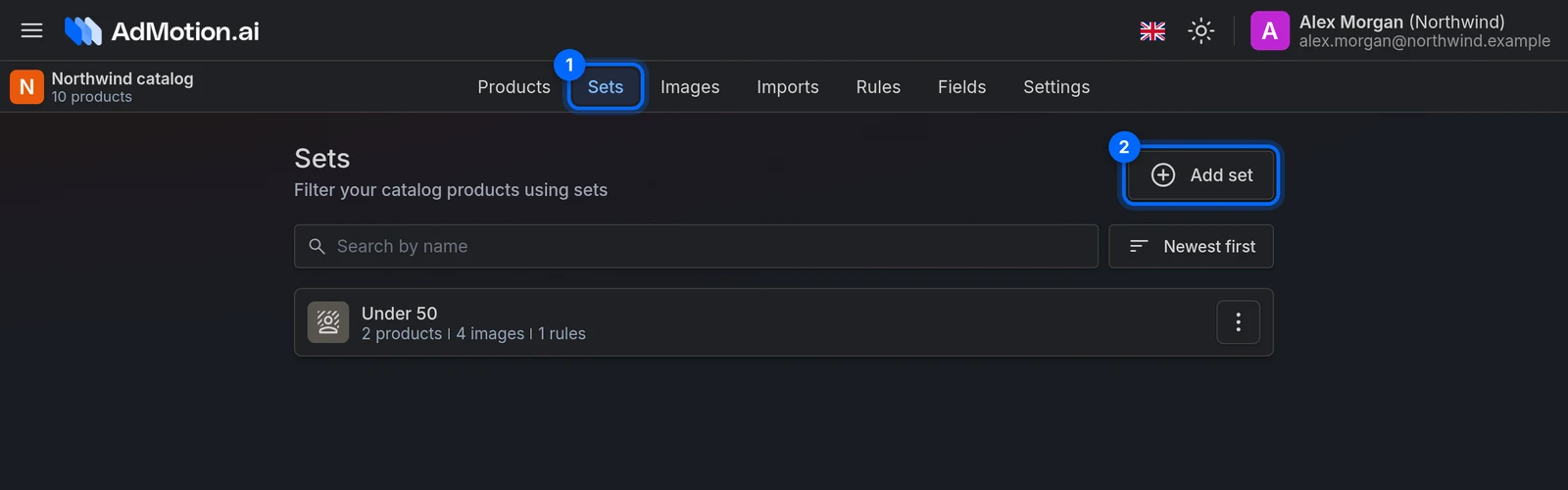
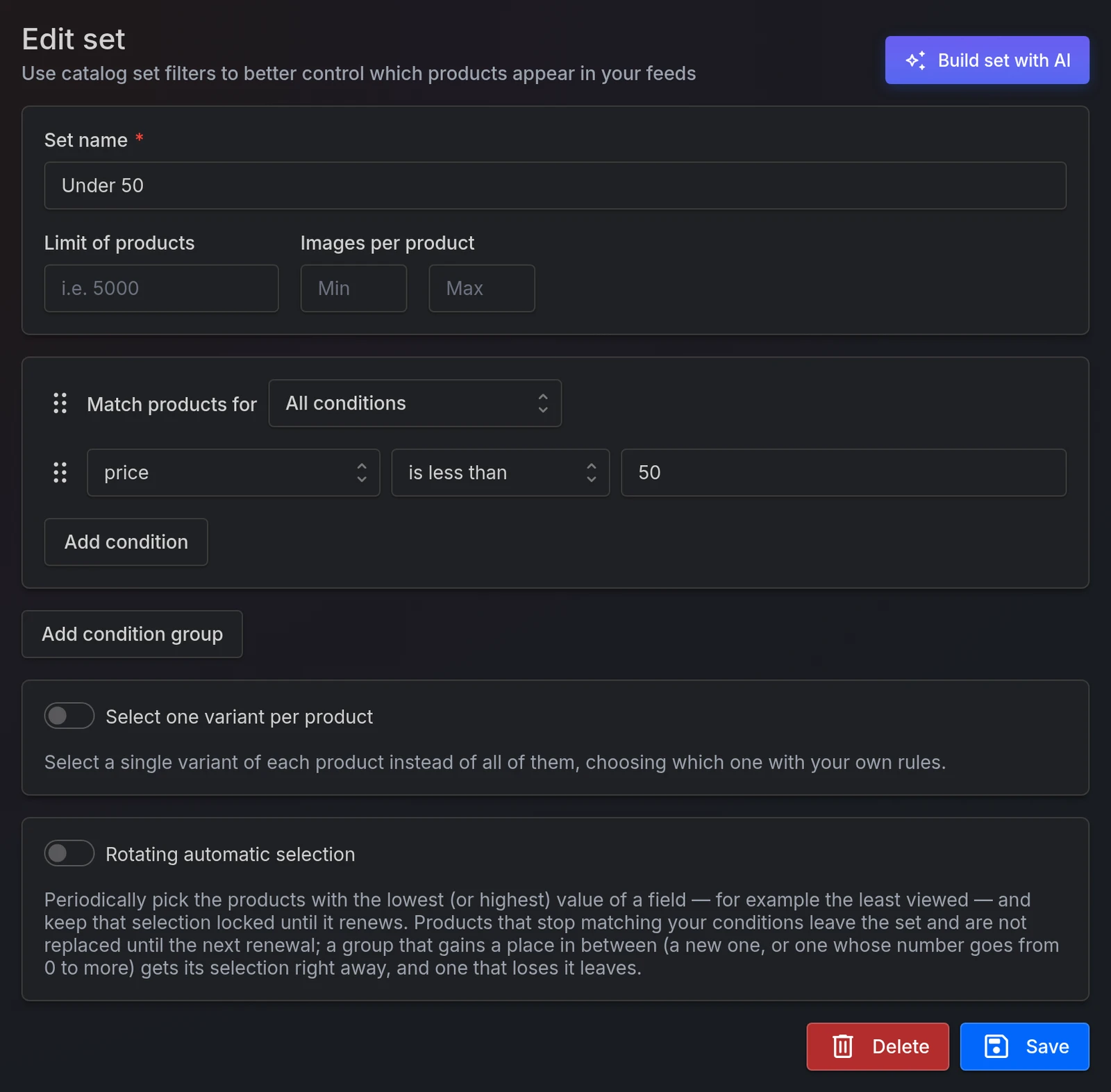
The product count appears on the Sets list once you save — there's no live count while you're building, so save and check.
Building conditions
Each condition is three parts: a field, an operator, and a value.
The value box suggests real values from your catalog as you type, with how many products have each one. That's the fastest way to spot that your data says In Stock rather than in stock, before you write a filter that matches nothing.
Conditions live in groups. Inside a group, choose whether to match products for All conditions or At least one condition. Add more groups with Add condition group and join them with And / Or.
Andbinds tighter thanOr. Reading top to bottom,A Or B And Cmeans A, or else both B and C — not (A or B) and C. If a mixed set is behaving oddly, that's usually why. Keep each group to a single kind of join and you'll never meet this.
Two operators called "is equal to"
The operator dropdown is grouped: Text, Multiple, Number, Advanced. Both Text and Number have an operator called is equal to, and they do different things — the group heading is the only way to tell them apart.
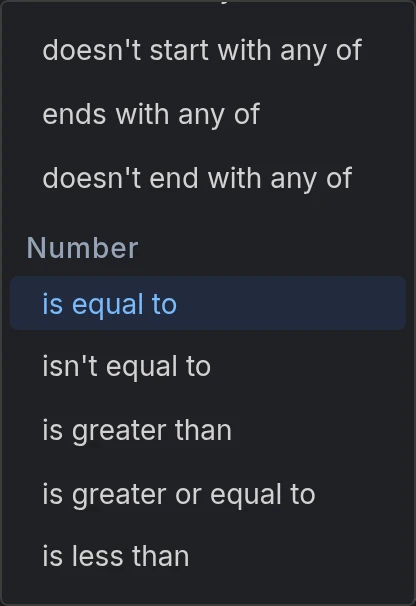
- Text → is equal to compares text.
"10"and"10.0"are different. - Number → is equal to compares numbers.
"10"and"10.0"are the same.
Use the Number group for anything you want compared as a quantity: prices, stock, weights.
Number operators treat anything non-numeric as zero. A product whose price is empty, or
N/A, orAsk for price, counts as 0 — so price is less than 10 quietly matches all of them. If your prices might be blank, add a condition that the price isn't empty.The same applies to formatting:
49,99reads as 49, and$49.99reads as 0 (49.99 EURis fine). Sets read the stored text as it is — the Field subtype on the catalog's Fields tab helps import rules, not sets — so prices with currency symbols or comma decimals need cleaning into a plain number first, with an import rule (for example search and replace) on the catalog's Rules tab. Then set their Field subtype to Decimal point (0.01), or your import rules will misread the cleaned prices.
Other things worth knowing
- Matching ignores capitals. contains
nikematchesNikeandNIKE. There's no way to make a set case-sensitive, including with matches regex. - Empty means empty text, not missing. is empty and isn't empty both look for an empty value. A field that's entirely absent matches neither.
- Word count counts spaces. Double spaces and line breaks throw it off.
Extra filters
Above the conditions there are two filters that don't need a field:
- Limit of products — caps how many products land in the set. It isn't "the best N" by any measure; it's just the first N we find, so use it for sampling, not for picking winners. It's unavailable while Rotating automatic selection is on.
- Images per product — Min and Max. These count image slots in order, so they assume your products fill their image fields from the first one onwards without gaps.
One variant per product
Turn on Select one variant per product when your catalog has a row per variant but your channel wants one entry per product. It can't be on at the same time as Rotating automatic selection.
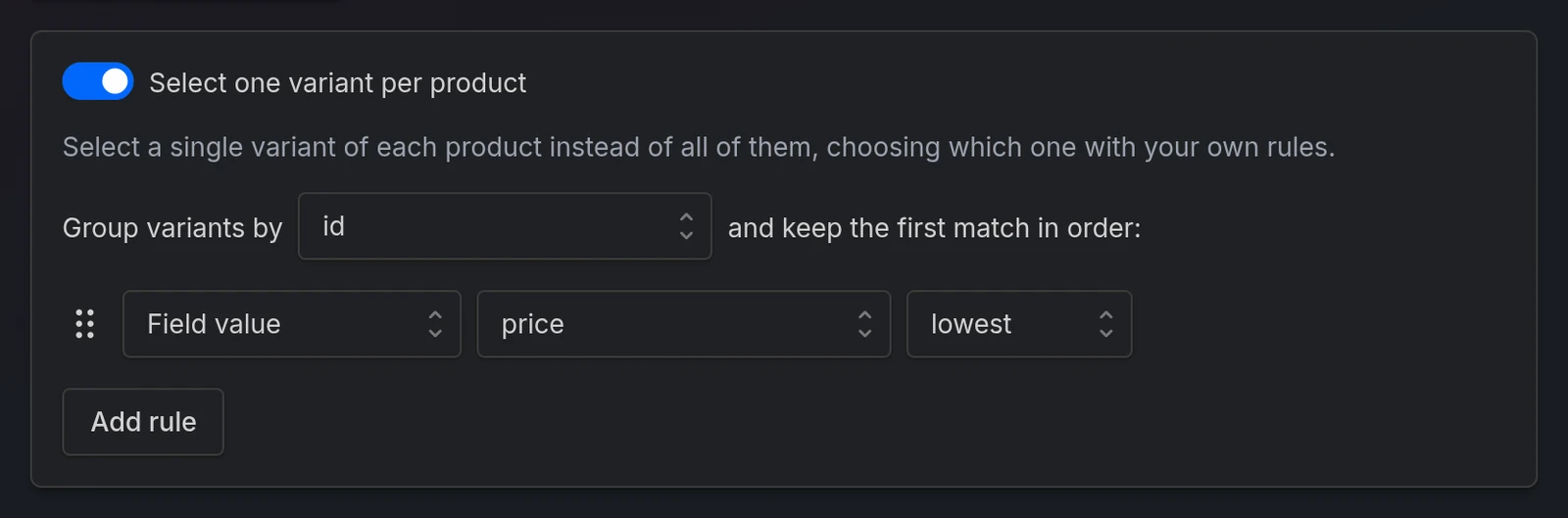
Choose the field to Group variants by — usually your Group ID field, which is pre-filled — then stack rules to decide which variant survives. Rules apply in order, as tie-breakers:
- Field value — highest or lowest of a field. Note this always compares as a number, so choosing "highest" on a text field doesn't do what it looks like.
- Position in catalog — first or last in your source file.
- Condition — variants matching it win.
If you use a Condition you can also decide what happens When no variant matches your condition: Keep one variant anyway, or Exclude the product entirely.
Products whose group field is empty are each treated as their own product, rather than being lumped together. That's usually what you want.
Once this is on, Limit of products limits products, not variants.
Building a set with AI
Click Build set with AI, describe what you want in plain language, and press Generate.
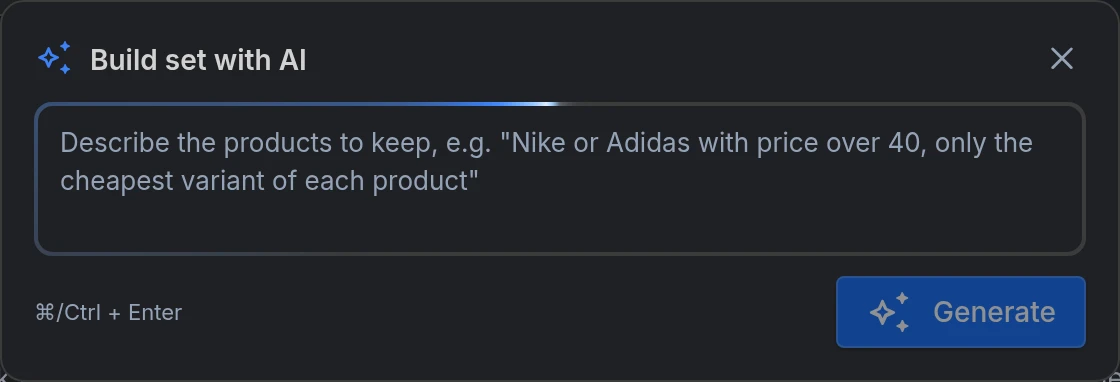
You'll get conditions in the editor to look at — nothing is saved until you click Save.
The AI rewrites the whole set, it doesn't add to it. It's told what your set currently contains and asked to return the new version, so asking it to "also exclude out-of-stock" normally keeps everything else. But it's rewriting, not appending: if it misreads you, conditions you had can disappear. Read what came back before saving, and don't use it on a complicated set you'd hate to lose.
There's a daily limit on generations, shared with writing rules with AI, and free accounts have a monthly one too. If you're told to Slow down, that's the daily limit — it resets tomorrow, not in a moment. Monthly limit reached is the monthly one.
What sets affect
A feed points at a catalog and a set. Change the set's conditions and every feed built on it exports different products on its very next fetch — no re-import, no delay, no warning.
That's the point of sets, and also the risk:
A set that matches nothing produces an empty feed, and channels read an empty feed as "delete all my products". Nothing stops you saving a set with zero matches. After editing a set that's feeding a live channel, check the product count on the Sets list before you walk away.
Sets rebuild automatically on every catalog import, so they're always in step with your products.
A condition on a field that disappears is ignored. If your source file stops providing a column, conditions using it are skipped rather than failing — so the set gets bigger. If every condition referenced missing fields, the set becomes your whole catalog. The screen still shows those conditions, which makes it hard to spot. After your source's columns change, re-check your sets.
Deleting a set
Deleting a set deletes every feed using it, and any background remover attached to it. You'll be shown the feeds before you confirm; the removers aren't listed, so check for those yourself. Templates pointing at the set survive — they just lose the set.
Common issues
| Issue | Solution |
|---|---|
| My set matches 0 products | Check capitals and spelling against the suggestions in the value box, and remember number comparisons treat blanks as 0. |
| A price filter matches products with no price | Non-numeric prices count as 0. Add a condition that the price isn't empty. |
| A price filter matches nothing at all | Your prices may use comma decimals or a currency symbol. Clean them into a plain number with an import rule on the catalog's Rules tab, and set their Field subtype to Decimal point (0.01) — the subtype alone doesn't change how sets read them. |
| The set grew on its own | A condition's field is no longer in your source file, so it's being ignored. |
| And / Or across groups doesn't behave as it reads | And binds tighter than Or. Split them into separate sets, or keep each group to one kind of join. |
| I don't see the product count while building | It's only calculated on save. Save, then look at the Sets list. |
| Every variant comes through despite grouping | The Group variants by field is missing from your catalog, which silently switches grouping off. |
| The AI dropped conditions I wanted to keep | It rewrites the whole set rather than adding to it. Undo by leaving without saving. |
Ready to try it?
Create your account and follow the guide with your own catalog.