 Catalogs Getting started · Step 1
How to add a catalog
Connect a product data source (direct URL, FTP, Google Sheets, Shopify, Tiendanube, BigCommerce) and import your products: update schedule, field mapping and common import errors.
- 1 How to add a catalog
- 2 How to create catalog sets
- 3 How to create a template
- 4 How to create a feed
- 5 How to publish your feed
The catalog is the foundation of everything in AdMotion: it holds your products and powers your feeds and templates. This guide walks you step by step through connecting your data source and creating your first catalog.
Before you start
You need a source with your product data. It can be:
- A feed file reachable over URL or FTP, in
.csv,.tsv,.txt,.xmlor.jsonlformat (optionally compressed as.zipor.gz). - A Google Sheets spreadsheet.
- A Shopify, Tiendanube or BigCommerce store.
Step 1 — Create the catalog
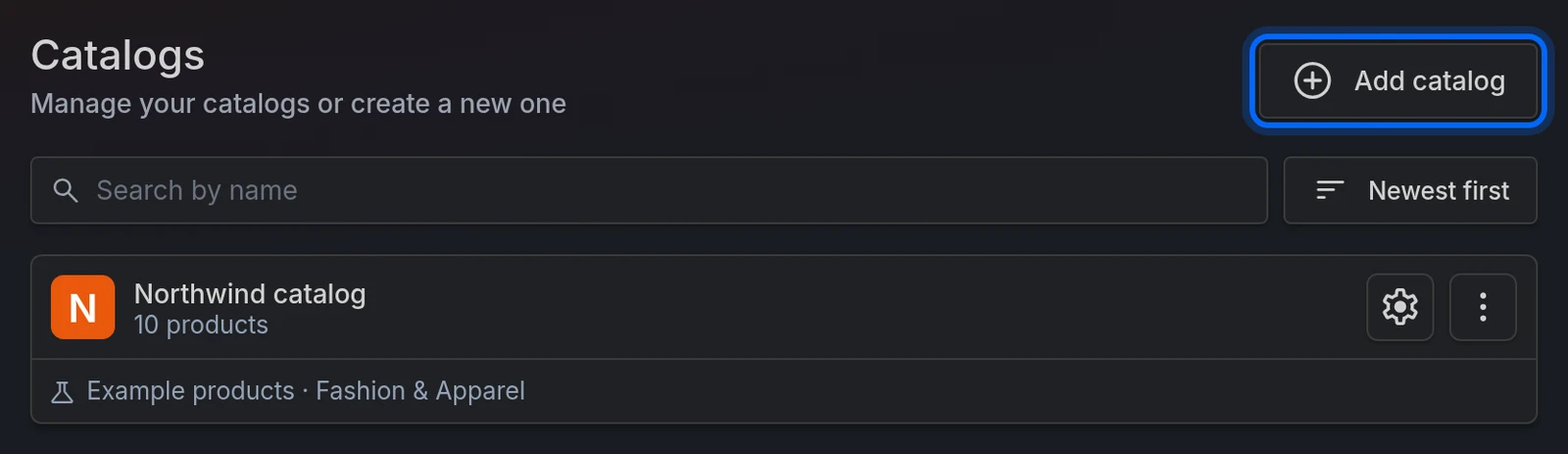
In the side menu, go to Catalogs.
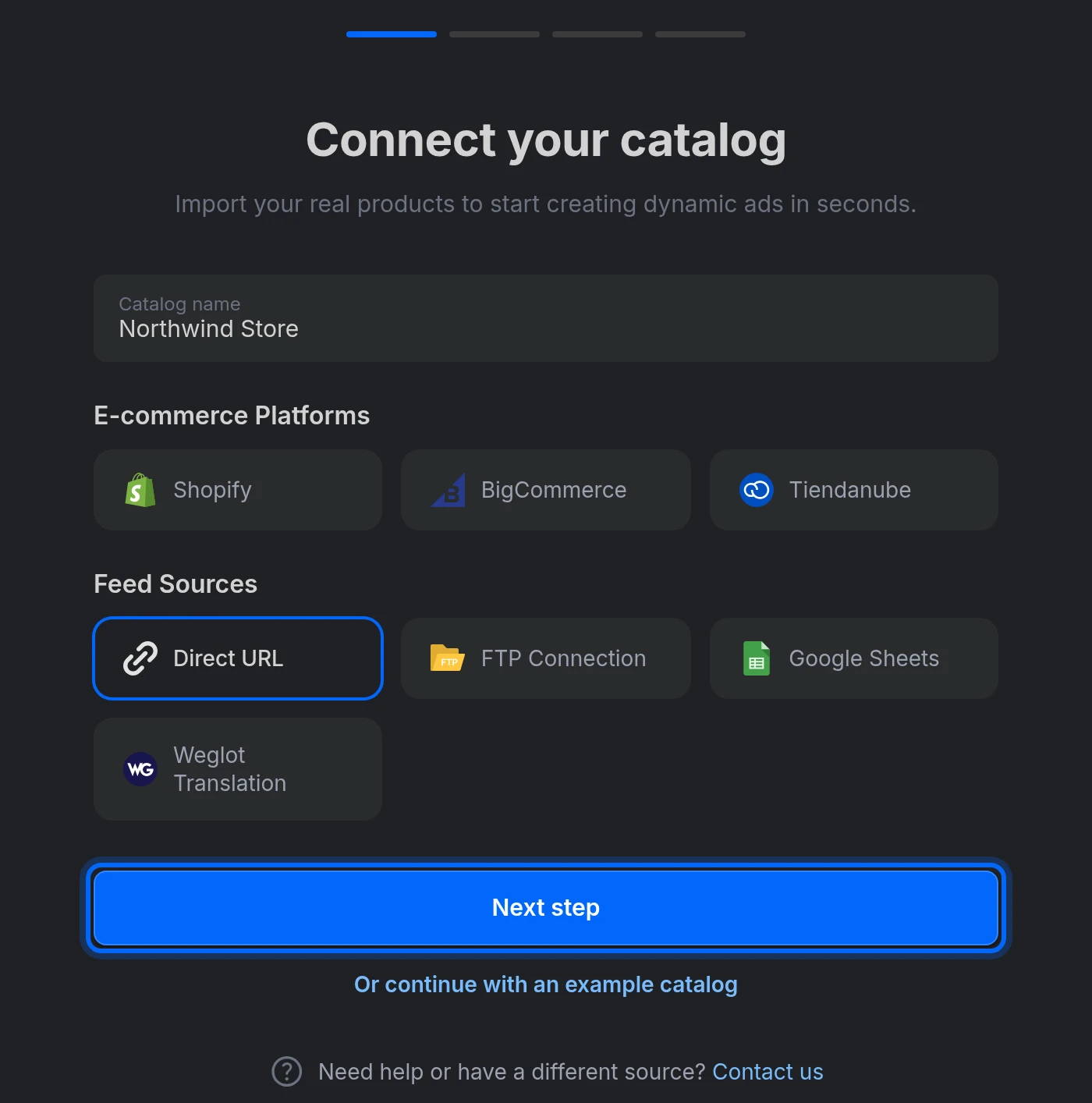
Click Add catalog. The Connect your catalog assistant opens.
Enter the Catalog name (for example, your store's name).
Pick the source type: Shopify, BigCommerce and Tiendanube are under E-commerce Platforms; Direct URL, FTP Connection, Google Sheets and Weglot Translation under Feed Sources. Each one is explained below.
Click Next step.
Step 2 — Set up the data source
When the source is set up, click Next step to go on to the updates.
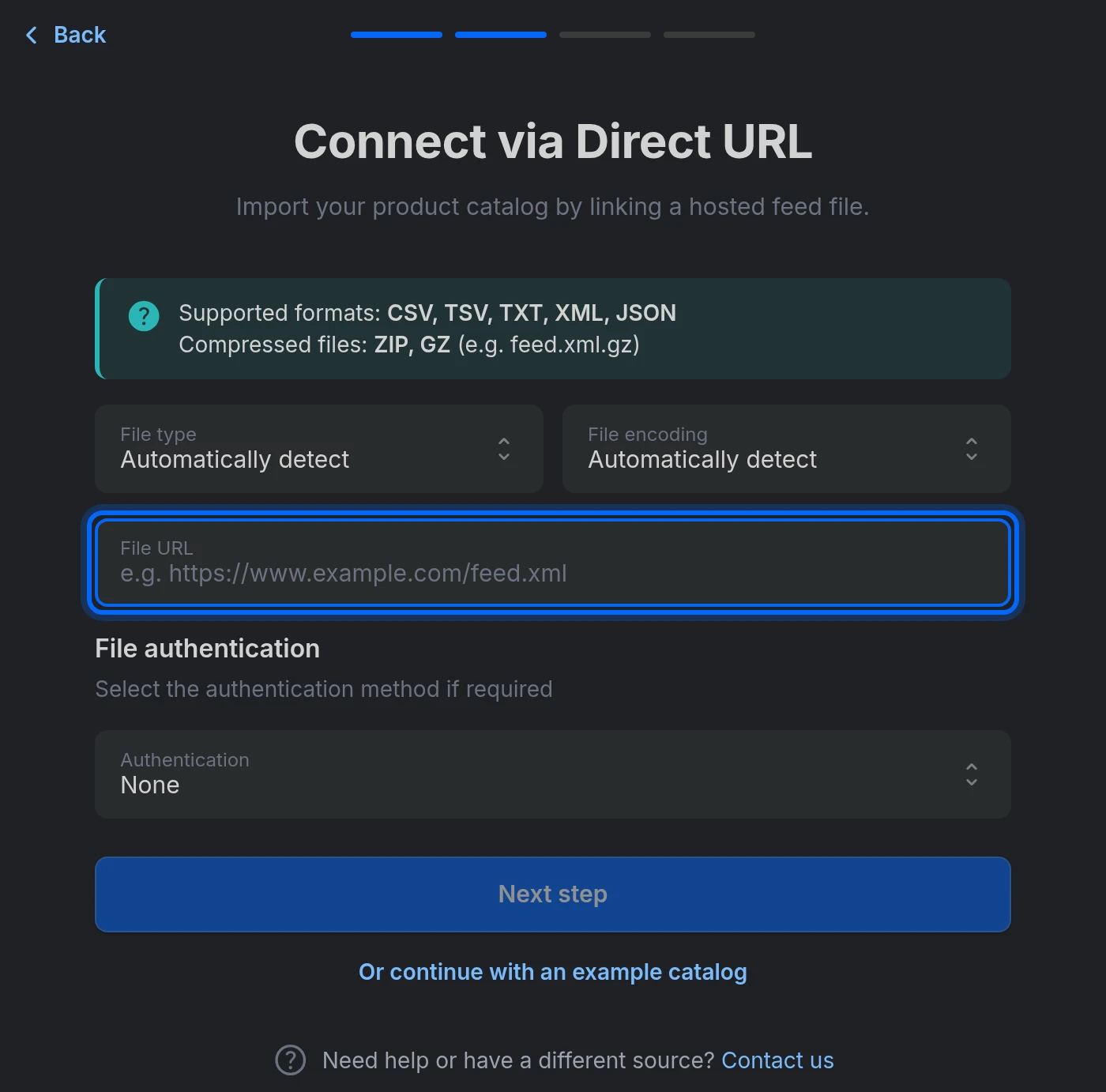
Direct URL
For feeds published at a public URL.
- Paste the feed address into File URL, e.g.
https://example.com/path/to/file.csv. - Leave File type and File encoding on Automatically detect unless the file isn't read correctly.
- If the URL is protected, pick the method in Authentication, under File authentication:
- Basic auth — enter the Username and Password.
- Custom header — enter the Header (e.g.
Authorization) and its Value.
Name compressed files after their type. If the file is compressed as
.gz, the name must include the file type, e.g.feed.xml.gz.
FTP Connection
For files hosted on an FTP or SFTP server.
- Paste the full URL into File URL (e.g.
ftp://ftp.example.com:21/path/to/file.csv), or fill in the fields one by one:- Protocol — FTP (port 21) or SFTP (port 22).
- Host, Port, Username and Password.
- File path, e.g.
/path/to/file.csv.
The URL and the individual fields stay in sync automatically: use whichever is more convenient. File type and File encoding work as in Direct URL.
Google Sheets
- The sheet must be public or shared with the email address shown in the form.
- Paste the document link into File URL (the link in your browser when the sheet is open).
- Once the URL is validated (when you paste it, or with Sync), select the Sheet (tab) that contains the products. The first row must contain the column names.
Excel files don't work. Excel files (
.xlsx) are not supported: convert them to Google Sheets format first.
Shopify
Shopify products reach AdMotion through CatalogExporter, our app on the Shopify App Store. It publishes your products as a feed URL, which you then add here as a Direct URL source.
- Pick Shopify and click Install the app to open CatalogExporter's listing on the Shopify App Store, and install it on your store.
- In CatalogExporter, go to Feeds → Create Feed and fill in:
- Feed Name, and the Channel and Format (XML or CSV). The channel only picks CatalogExporter's default field mapping — any of them imports fine, since you map the columns to AdMotion's own fields in Step 5.
- Market and Language, which decide the prices and translations you import.
- Under Export Options, tick Include variants to export each variant as its own product, and Include metafields to bring your metafields in as extra columns.
- Click Save. CatalogExporter gives you the feed's URL.
- Back in the assistant, click I already have the feed URL (or go back and pick Direct URL) and paste that address into File URL. If you ticked Protect with HTTP Basic Authentication in CatalogExporter, choose Basic auth under File authentication and enter the same username and password. See Direct URL for the rest of the options.
The cache sets the pace. CatalogExporter's Cache setting (between 10 minutes and 24 hours) caps how fast a change in Shopify can reach AdMotion: until it expires, the feed URL keeps serving the same file no matter how often we check it. Keep it below how often you expect your products to change.
Already connected a Shopify store in the past? Instead of the banner you'll see a store picker: choose the Store, the Market and the Language, and tick Include variants to import each variant as its own product (Include metafields and Use market localizations are there too). That connection keeps working, but new stores have to go through the app — Shopify no longer allows the kind of private app it relies on.
Tiendanube
- Click Connect store.
- Enter the Store URL and wait for it to be verified.
- Click Install the app and authorize the connection in the Tiendanube window.
- Back in the assistant, the newly connected store is already selected under Store. Choose the Market (language and currency combination) and tick Include variants if you want each variant imported as a product.
BigCommerce
The connection is managed from the store itself: click Install the app, install it in your BigCommerce store and follow the instructions from there.
Weglot Translation
This option creates a translated copy of a catalog you already have (it doesn't import new products), so it only appears once you have at least one catalog:
- Enter your Weglot API Key.
- Pick the source language (From) and the target language (To).
- Select the Catalog you want to translate and the Fields to translate.
Step 3 — Catalog updates
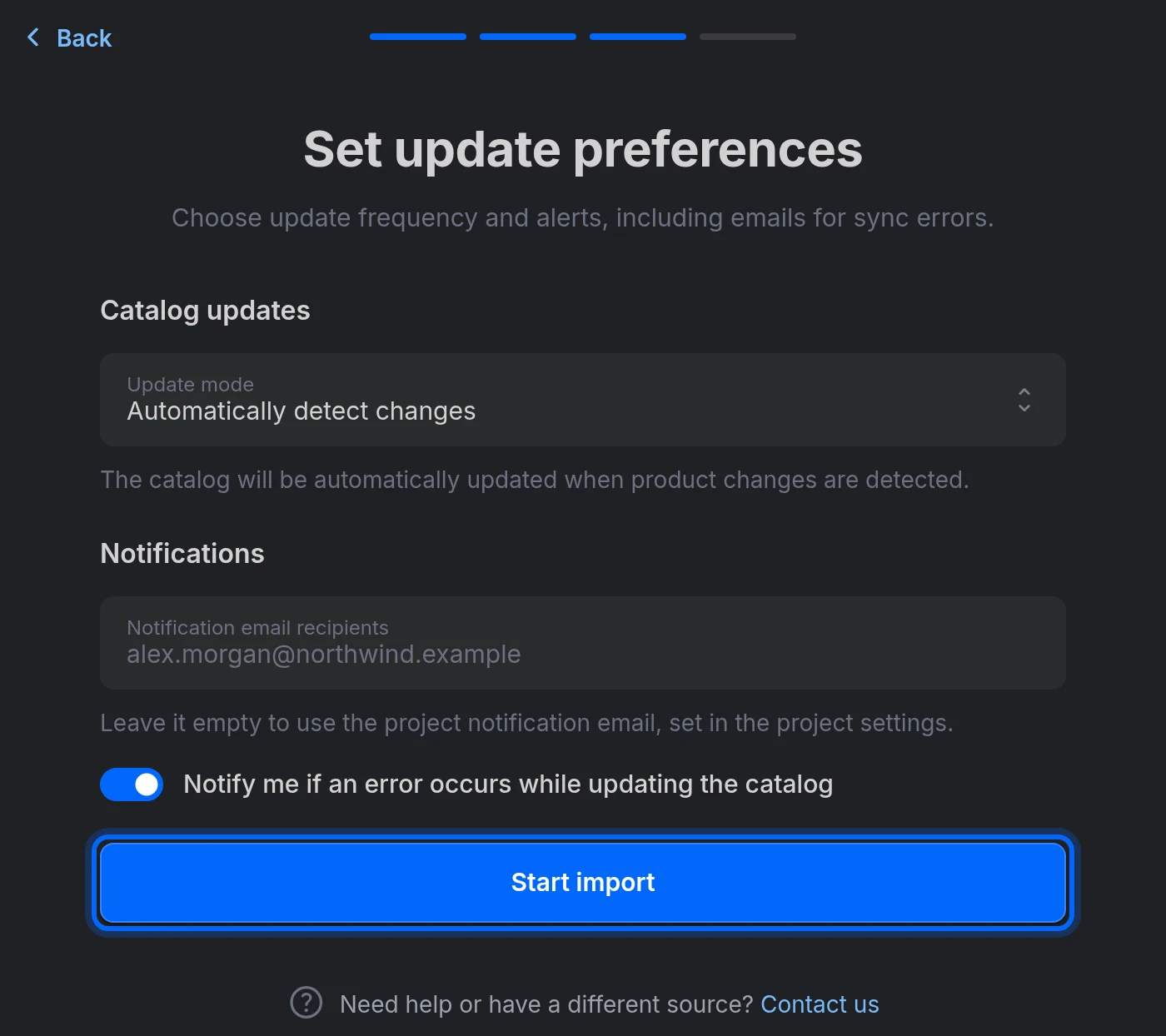
Decide in Update mode how your catalog will be kept up to date:
- Automatically detect changes — we periodically check the source file and re-import the catalog when changes are detected. This is the recommended option.
- Scheduled updates — the catalog updates at the Frequency you choose: every 5, 10, 15 or 30 minutes (Every few minutes), every 1, 2, 3, 4, 6, 8 or 12 hours (Hourly), every day at a specific time (Daily) or on a weekday at a specific time (Weekly), always in your timezone.
- Manual updates — the catalog only updates when you trigger an update yourself.
Under Notifications, Notify me if an error occurs while updating the catalog comes switched on, so you find out if an import fails. The alerts go to the project's notification email unless you enter other addresses in Notification email recipients.
Step 4 — Start the import
Click Start import. This creates the catalog and launches its first import, whose progress the assistant shows in real time. You can close it: the import carries on in the background. When it finishes, click See your products; if it fails, View import details takes you to the catalog's Imports tab to see what went wrong.
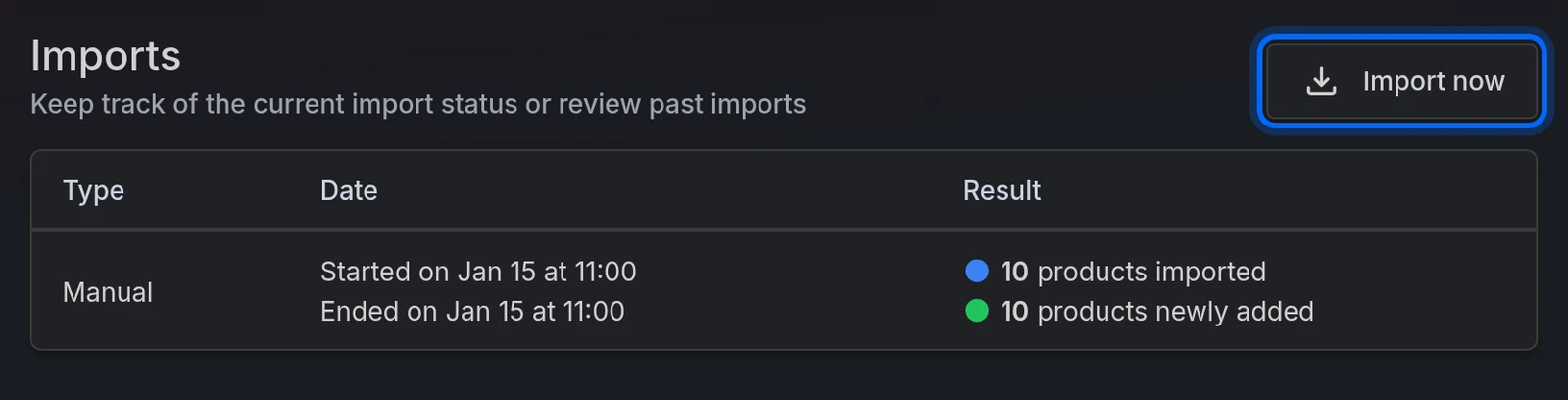
The Imports tab shows every import's result: how many products were imported, how many are new, how many changed, and so on. From this same tab you can trigger an update at any time with Import now.
Step 5 — Review the fields mapping
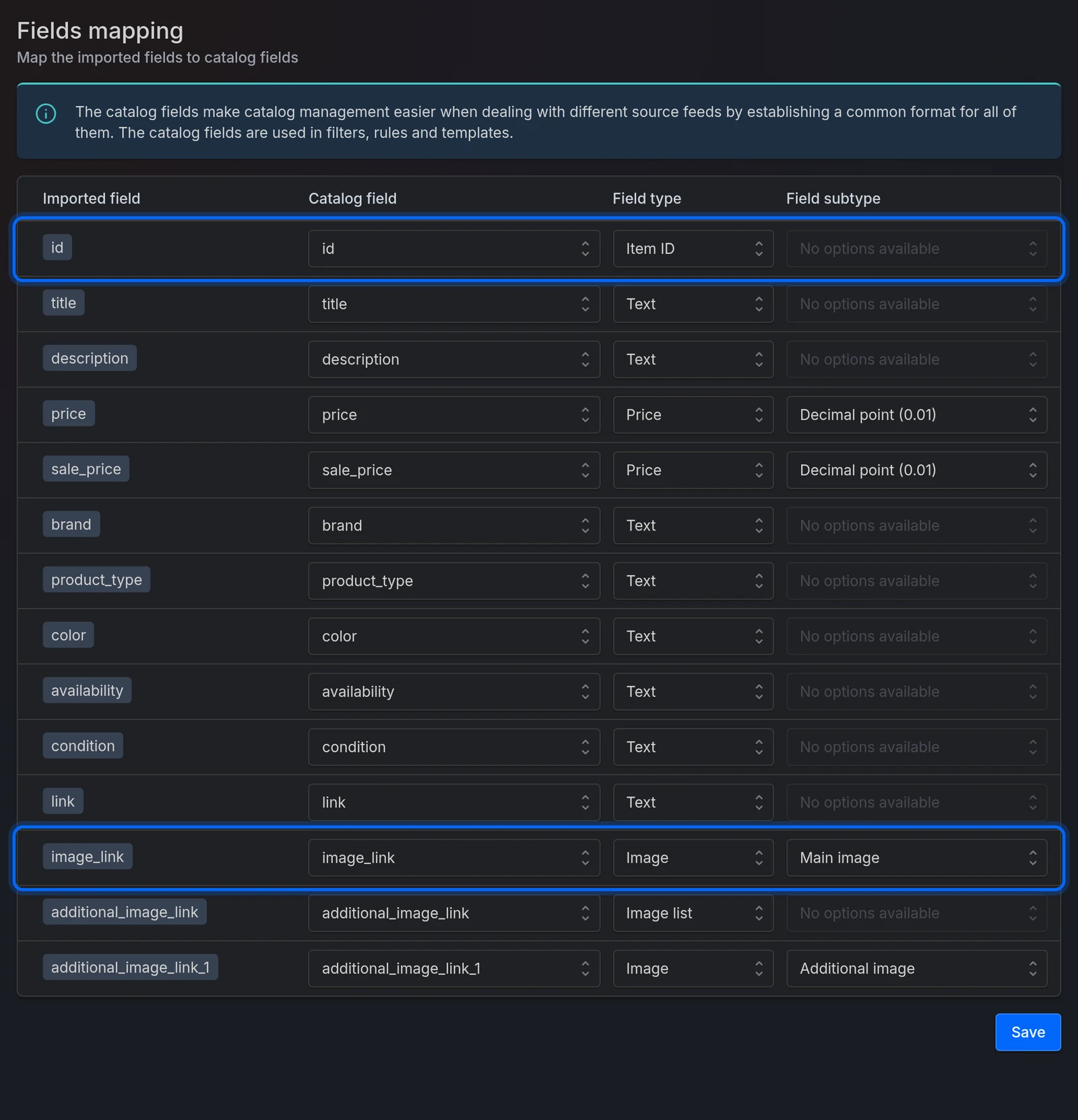
During the import we detect your file's columns and automatically map them to the standard catalog fields. It's worth reviewing the result:
- Open the catalog's Fields tab.
- For each Imported field, check:
- Catalog field — the standard name (id, title, price, image_link…). This is the name you'll use later in filters, rules and templates.
- Field type — Item ID, Group ID, Image, Image list, Number, Price or Text.
- Field subtype — e.g. whether an image is the main or an additional one, or the decimal separator for numbers and prices.
- Pay special attention to the Item ID and the Main image being correctly identified: they are the foundation of feeds and templates.
- Click Save.
Common issues
| Issue | Solution |
|---|---|
| The import fails with an access error | Check that the URL is publicly reachable or that the credentials (authentication, FTP) are correct. |
| No products found | Check that the file contains products and that the format is detected correctly; try setting the File type manually. |
| Products are missing | You may have reached your plan's product limit, or a catalog rule may be excluding them. The details appear in the Imports tab. |
| Strange characters appear (accents, symbols) | Set the File encoding manually (e.g. UTF-8 or ISO-8859-1). |
Next steps
With your catalog created you can now:
- Create sets to segment your products.
- Define rules that transform or exclude products during import.
- Create feeds for Meta, Google Shopping and the rest of the channels, with images generated from your templates.
Ready to try it?
Create your account and follow the guide with your own catalog.