 Feeds Getting started · Step 5
How to publish your feed
Hand a feed's URL to Meta, Google Shopping, TikTok or any other channel: where to find the URL, protecting it with a username and password, checking it in the Preview tab, how often it refreshes, and what the 401/403/410 errors a channel reports mean.
- 1 How to add a catalog
- 2 How to create catalog sets
- 3 How to create a template
- 4 How to create a feed
- 5 How to publish your feed
AdMotion never sends your products anywhere. Every advertising channel — Meta, Google Shopping, TikTok, Pinterest and the rest — works the other way round: it fetches a feed from a URL, on its own schedule. So publishing a feed comes down to one thing: handing over its URL.
This guide covers our side of that handover — where the URL is, how to protect it, how to check the feed before a channel sees it, and what to expect once one is pulling from it.
Before you start
Your feed needs its Fields set. Until it has them there is nothing to publish, and the Preview tab doesn't appear. Your subscription also has to be active: if it lapses, every feed URL stops serving.
Step 1 — Copy the feed URL
- Open the feed and go to the Preview tab.
- Click the Feed URL field in the top right corner. It copies to your clipboard.
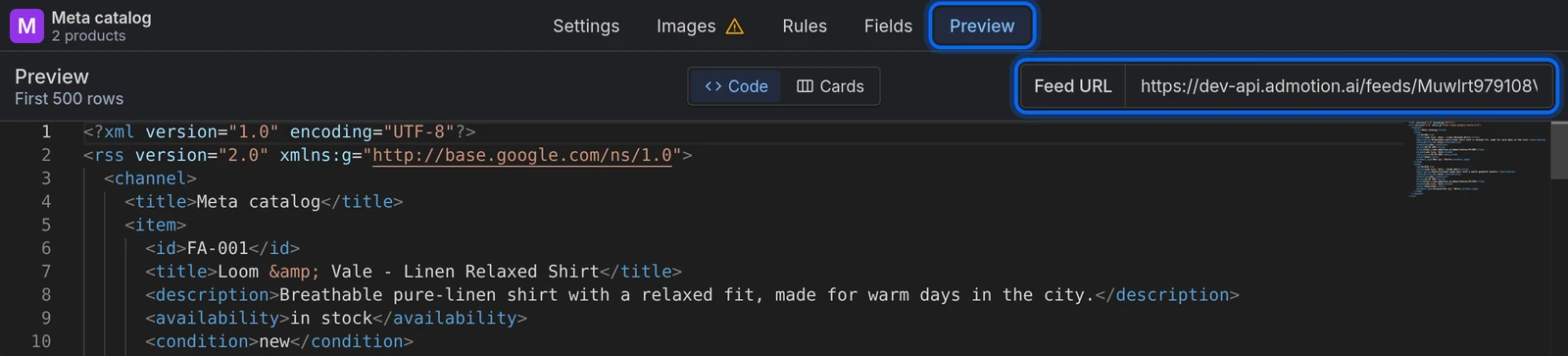
The same URL is also shown in the feeds list, under each feed's name. It looks like this:
https://api.admotion.ai/feeds/a1b2c3d4e5f6g7h8/my-product-feed

Three things about it tend to surprise people:
- It has no file extension. The format you chose (XML, CSV, TSV or TXT) travels in the response, not in the URL. If a channel insists on an extension, add one —
.../my-product-feed.xml— and it will work exactly the same. - Only the random id matters. The readable part at the end comes from the feed's name and is decoration. Renaming the feed changes the URL you see here, but a URL you already handed to a channel keeps working.
- Opening it gives you the file itself, not a page: a CSV, TSV or TXT feed downloads, and an XML feed shows up in the browser as raw XML. That's expected, and it's a good sign: channels need a URL that leads straight to the file rather than to a page, and opening it in a new tab to check that you get the file is exactly the test they ask you to run.
Step 2 — Protect it
That random id is the only thing between your catalog and anyone who has the link. Treat the URL as a secret, and unless you'd be happy publishing your catalog openly, add a password:
- Go to the feed's Settings tab and scroll to Authentication.
- Fill in Username and Password.
- Save.
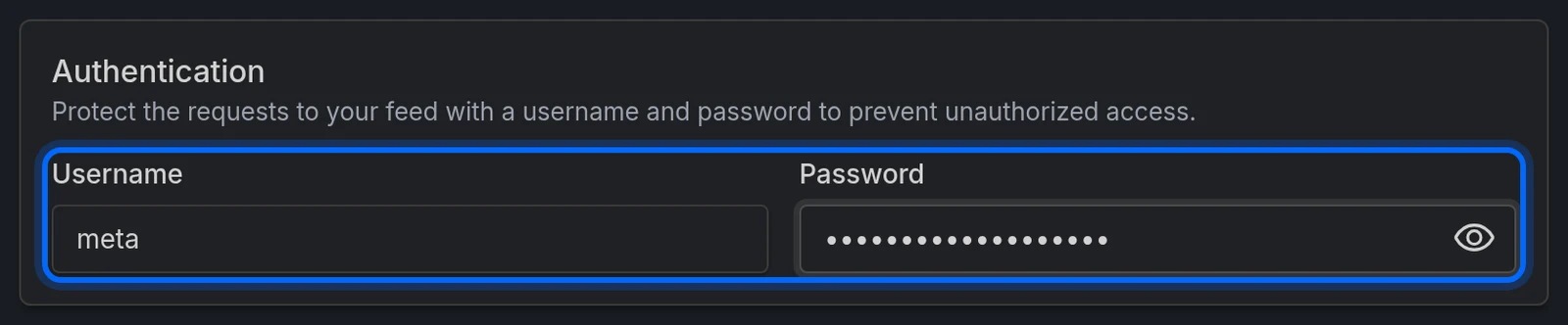
The channel then has to send those credentials to fetch the feed. This is standard HTTP Basic authentication, and Meta, Google, TikTok and Pinterest all have a field for the username and password when you set the feed up. Check that yours does before you turn it on, though: a channel that can't authenticate will quietly stop importing.
Username and Password go together. One without the other isn't accepted. Leave both empty for an open feed.
Duplicating a feed copies its password. The duplicate gets its own URL, but keeps the username and password of the feed you copied. Change them on the copy if it should have its own.
Step 3 — Check the feed before you hand it over
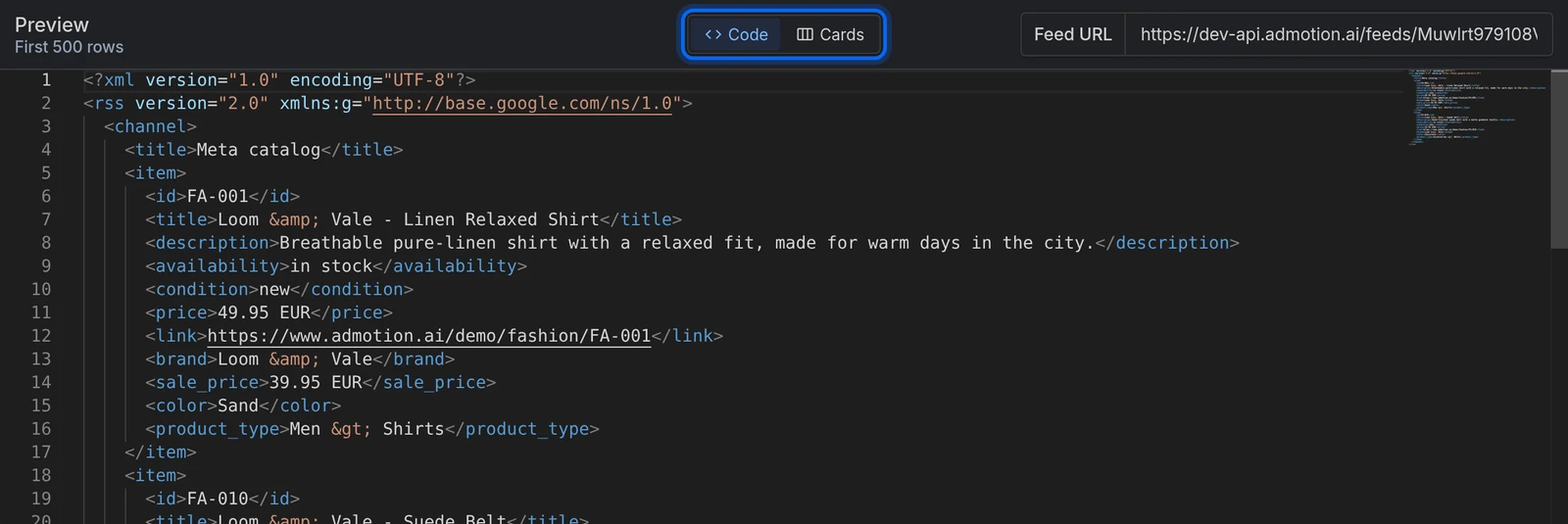
The Preview tab shows the first 500 rows of the real feed. It's worth a look before a channel sees it:
- Code (XML feeds) is exactly what the channel receives, character for character.
- Table (CSV, TSV and TXT feeds) shows the real values and the real columns, but not the delimiters and quoting — those only appear in the downloaded file.
- Cards and Gallery render the actual images your templates generate for each product. This is where a broken template shows itself, and it's the check most worth doing.
Step 4 — Give the URL to your channel
Every channel wants the same three things: the URL, the credentials if you set any, and how often to fetch. In its interface, look for the option to fetch a feed from a URL on a schedule — not the option to upload a file. Channels name it differently (Meta calls it a scheduled feed, Google Merchant Center calls it a scheduled fetch), and the exact steps live in each channel's own documentation:
- Meta — About scheduled data feed uploads for catalogs
- Google — Update your product data source on a schedule
- TikTok — How to create a catalog
- Pinterest — Add your data source
For any other channel, look for the same thing in its own documentation: adding a product feed from a URL.
How often does the feed refresh?
There is no refresh button, because there is nothing to refresh. The URL is always live: we generate the feed from scratch on every single request, with your catalog's current data and your current rules. Save a rule and the very next fetch already has it.
That means freshness is entirely down to two things you control elsewhere: how often your catalog imports, and how often your channel fetches.
Two things worth getting right:
- Don't set the channel to fetch too often. Every fetch reads your whole catalog and applies every rule, from scratch. For most catalogs a daily fetch is plenty; hourly on a large catalog is a lot of work for very little gain.
- Try not to overlap a fetch with an import. Point the channel at a time of day when your catalog isn't importing, so it always reads a settled catalog.
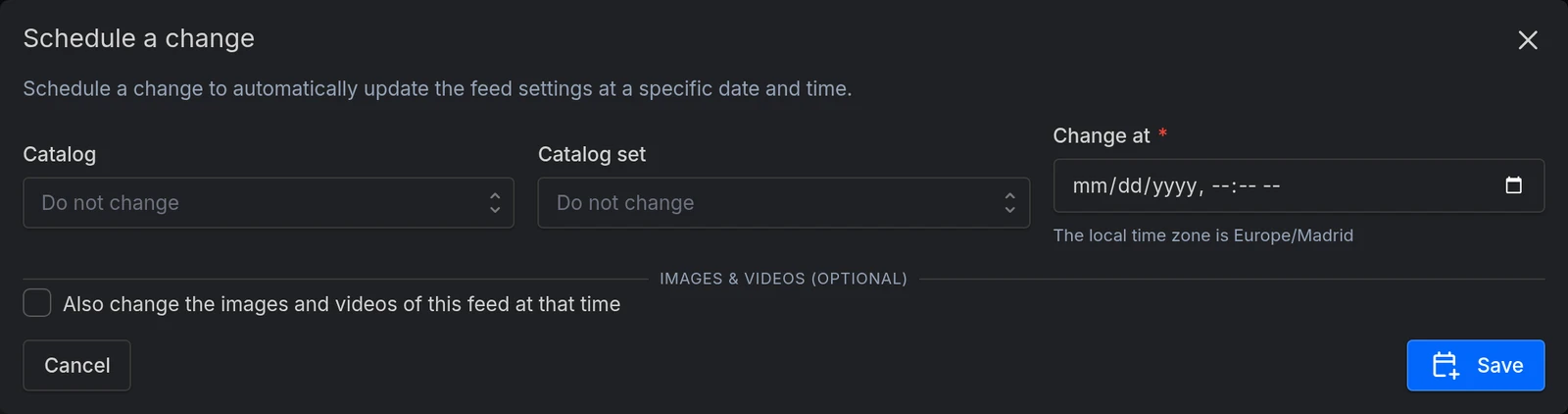
The Schedule button in the feed's settings is not about refreshing. It schedules a one-off change to the feed's own configuration — swapping its catalog, its set or its images at a chosen moment. The URL is live regardless.
Images take a moment the first time
The images in your feed are generated per product, on demand: the first time anyone requests one, it gets rendered; after that it's served ready-made. A channel crawling your feed for the first time is asking for every image at once, so give that first crawl time.
Their addresses also carry a version, which changes whenever the template or the product data it draws changes — or when you click Regenerate image URLs in the feed's Settings. That's deliberate — it's how a channel notices an image was updated — but it does mean editing a template makes every image of the sizes you changed look new, and the channel will re-download all of them. Worth avoiding right before a big scheduled crawl.
What the channel sees when something is wrong
Channels report these as feed errors, and none of them are obvious from our side, so it's worth knowing what they mean:
| What the channel gets | What happened |
|---|---|
401 Unauthorized |
The feed has a username and password and the channel isn't sending them, or they're wrong. |
403 Forbidden |
Your subscription lapsed, so the feed is paused — or the project was deactivated. |
410 Gone |
You disabled this feed, or the catalog it reads from. Re-enable it and the URL starts working again. |
An empty feed is a valid feed. If your rules or your catalog set filter everything out, we return a perfectly correct feed with zero products in it — and most channels read that as "remove all my products". If a channel suddenly empties, check the feed's Preview tab before looking anywhere else.
Common issues
| Issue | Solution |
|---|---|
| The channel says it can't reach the URL | If the feed has a username and password, make sure the channel is configured with them. Check the feed and its catalog are enabled and your plan is active. |
| The channel rejects the URL because it has no extension | Add .xml or .csv to the end of the URL. Everything after the random id is ignored, so it changes nothing on our side. |
| The channel imports fewer products than the Preview shows | The Preview only ever shows the first 500 rows, so it isn't a count. Check the channel's own error report — products it rejects are usually missing a field it requires. |
| I renamed the feed and I'm not sure the old URL still works | It does. Only the random id identifies the feed; the readable part is decoration. |
| Products I removed are still showing on the channel | The channel only knows what it read on its last fetch. Wait for its next one, or trigger a fetch from the channel's side. |
Next steps
- Set up rules on the feed to adapt your products to what each channel expects.
- Create a second feed from the same catalog for another channel — each one gets its own URL.
Ready to try it?
Create your account and follow the guide with your own catalog.