 Feeds Primi passi · Passo 4
How to create a feed
Build a feed for one advertising channel: picking the catalog, set, channel and channel type, why changing the catalog, the channel or the file format re-maps every field, choosing templated or original images and variants, checking required and recommended fields, the field order deciding your output order, file formats, and what the Ready/Incomplete/Paused/Disabled badges mean.
Questa guida non è ancora tradotta; la mostriamo in inglese.
- 1 How to add a catalog
- 2 How to create catalog sets
- 3 How to create a template
- 4 How to create a feed
- 5 How to publish your feed
A feed takes your catalog and turns it into the file one advertising channel expects: the right fields, with the right names, in the right order. One catalog can feed as many channels as you like — one feed each.
This guide covers building the feed. Handing its URL to the channel is covered in the publishing guide.
Before you start
You need a catalog that has finished importing, and an active subscription — feeds are the one thing that needs one.
Step 1 — Create it
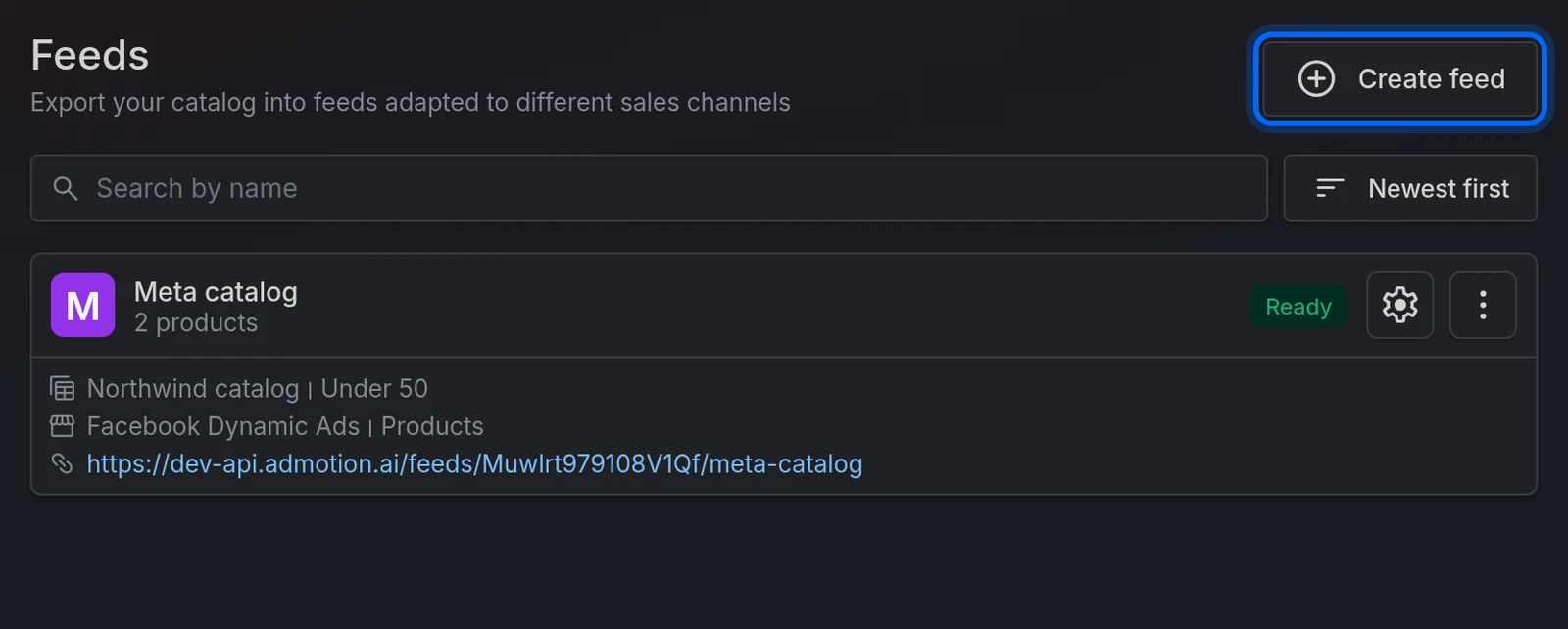
Click Create feed and fill in:
| Field | What it's for |
|---|---|
| Name | Yours. It appears in the feed's URL, but only as decoration. |
| Tags | Optional. For filtering your own list of feeds. |
| Catalog | Which catalog the products come from. |
| Catalog set | Which slice of it. Pick a set, or all the products. |
| Channel | Where it's going: Facebook Dynamic Ads, Google Shopping, Google Dynamic Feed, TikTok, Snapchat, Pinterest, Criteo, Microsoft Advertising, Thribee, ChatGPT — or Custom channel to define the fields yourself. |
| Channel type | The variant within that channel. Not a detail — see below. A Custom channel doesn't ask for one. |
| Feed type | The file format: CSV, TSV, TXT or XML — whichever of them the channel type accepts. |
Then Save & go to media.
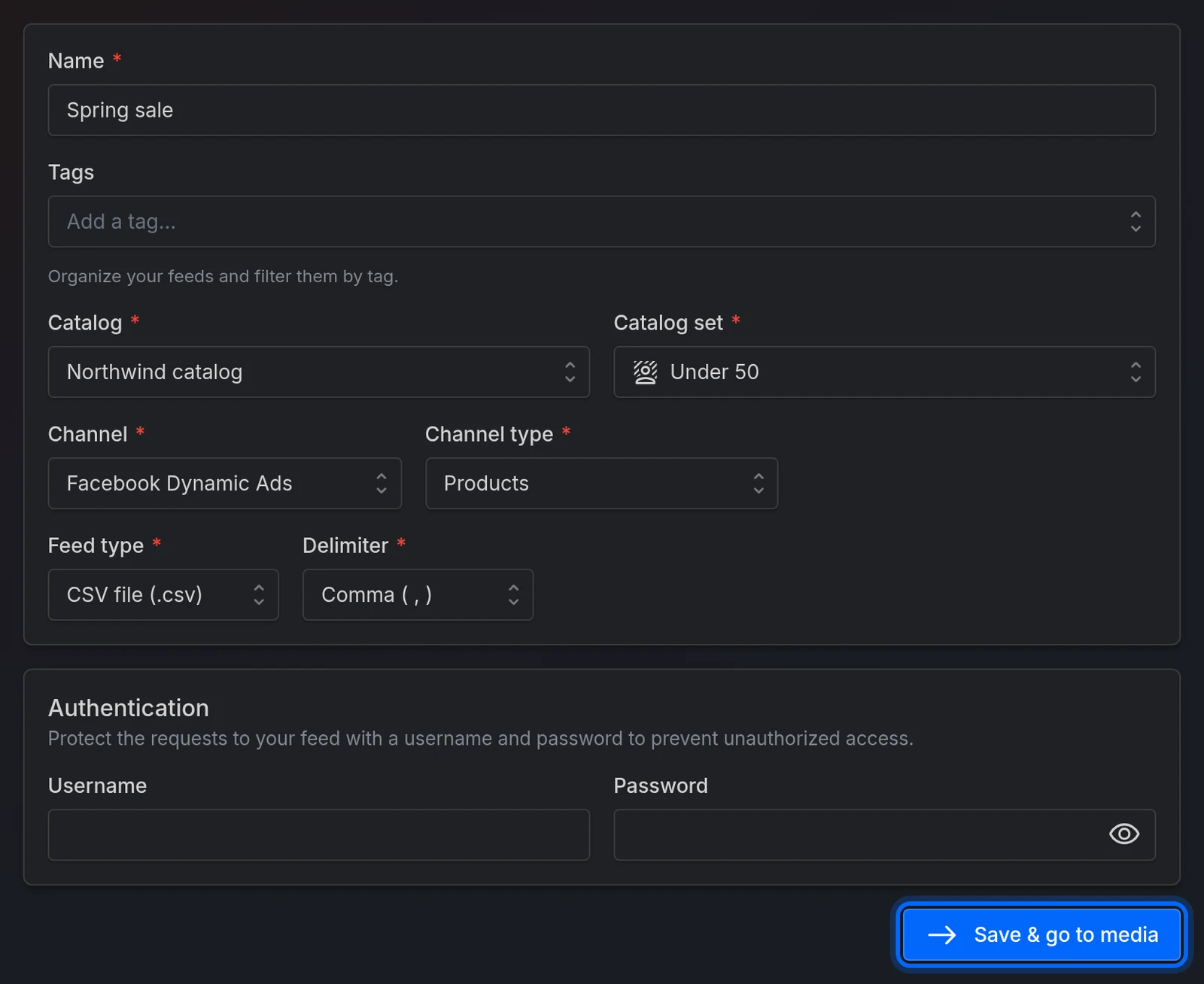
New feeds start on Facebook Dynamic Ads. That's the default, not a suggestion. If you're building for another channel, change it before you go any further — see the warning below.
Channel type matters more than it looks
Channel type is what actually decides which fields your feed has. Facebook Dynamic Ads with type Products and the same channel with type Hotels are completely different feeds with different field lists. Google Dynamic Feed has eight types; Criteo has four.
Pick the one that matches what you're advertising. If nothing fits, that's what Custom channel is for.
The one thing to get right before anything else
Changing the catalog, the channel, the channel type or the feed type re-maps every field from scratch. Any mapping you did by hand, any custom field, and the order you arranged your fields in are all replaced. Saving asks you first — Reset field mapping? — but there's no undo.
Note that Feed type counts when it crosses between XML and the other formats: flipping CSV to XML re-maps everything too. Switching between CSV, TSV and TXT doesn't.
Settle these before you invest time in the Fields tab.
Step 2 — Choose the images
This is where AdMotion earns its keep: each product's image can be the original photo, or an image generated from one of your templates. You set it up in the Media tab, where the new feed lands.
Each row of the table is one image to include for every product:
- Source field — which of the catalog's image fields it starts from.
- Template — the template to render it through, or None — original URL to pass the catalog photo straight through.
- Size — for a multi-size template, which size to render. The primary size carries a star.
- Tags — on channels that use them (Facebook's aspect-ratio hints, for one), what to tag the image with. Picking a template or a size fills in that size's format tags.
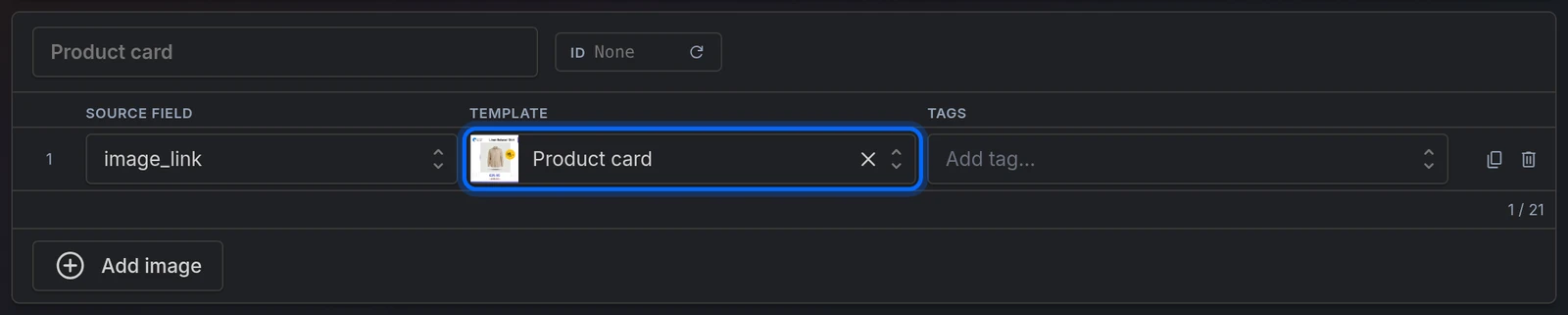
Add image adds another row — a product can carry several. On a Custom channel an Output field column also appears, where you name the column each image lands in.
Save & go to rules takes you on to the Rules tab. Rules are optional — the rules guide covers them; if you don't need any, Skip rules goes straight to Fields.
Variants — for A/B testing creatives
Add variant and each product goes out as one row per variant, linked by item_group_id so the channel treats them as the same product with alternative creatives — the blue template and the yellow one, say. Each variant has its own list of images, its own name, and an ID that rides on the product id of the rows it emits. A new variant starts empty; Duplicate variant, next to it, copies the one you're on instead. Most feeds never need more than the one variant they start with.
With a single variant the ID is optional and starts empty, so product ids go out as they are. Fill it in and the rows go out exactly as that variant's would in a feed with several — that's how you split variants across separate feeds, say each with its own catalog set. Clearing or changing it changes every product id in the feed, and ads tied to the old ids lose their history.
Videos
If videos are enabled for your project, channels with a video field (Facebook Dynamic Ads Products, Google Shopping, TikTok, Pinterest) — and a Custom channel — get a Videos section below the images, where you attach per-product videos rendered from a video template. The videos guide covers the whole pipeline.

Step 3 — Check the fields
Open the Fields tab. Each row is a field the channel expects; you choose which of your catalog fields fills it.
We map them automatically when the feed is created, so most rows are already filled in. Check them anyway — especially:
- Required fields are marked with a red icon; hover it and it says Required. You can't save until they're filled.
- Recommended fields get an amber star. The channel will accept the feed without them, but usually performs worse.
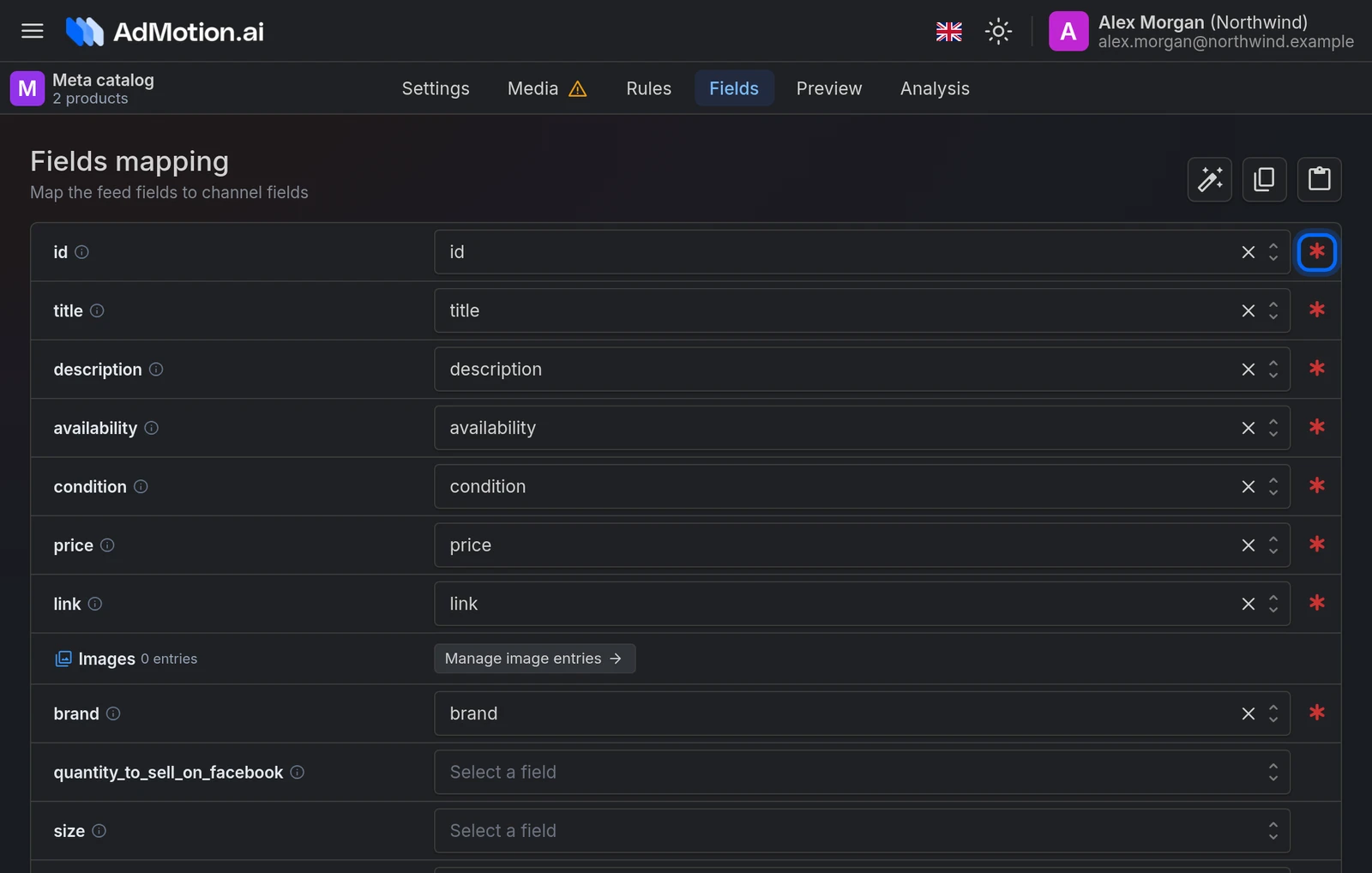
The order of the rows is the order of your output. Top to bottom here is left to right in your CSV, or the element order in your XML. Drag rows to change it.
If the automatic mapping went badly, Generate fields mapping with AI re-does it. It overwrites the mapping of every channel field (your custom fields and the row order stay), so use it early rather than after you've tuned things by hand. Nothing is saved until you press Save.
You can also Add custom field for anything the channel doesn't define, and copy a whole mapping between feeds with the clipboard buttons.
The Images row is a placeholder here. You can drag it to decide where your image columns land, but its contents are edited in the Media tab.
Step 4 — Preview and publish
The Preview tab shows the first 500 rows of the real feed, including the generated images. Check it, then see the publishing guide for handing the URL to your channel.
File formats
Feed type picks the extension: CSV, TSV, TXT or XML. The dropdown offers the formats the channel type accepts, and marks one it only discourages — such as CSV on Google Shopping — as discouraged by the channel; a format it doesn't accept only shows up if your feed already uses it, marked not accepted by the channel. A few types fix the format themselves (Thribee, TikTok's travel types) — then it's locked.
Feed type and Delimiter are independent. Choosing TSV file (.tsv) doesn't set the delimiter to tab — the Delimiter dropdown still says Comma unless you change it. A
.tsvfile full of commas is a real state you can save. If you pick TSV, set the delimiter to Tab ( \t ) yourself.
For XML, XML type offers RSS, Atom or Custom. Custom asks for your own XML header, XML item tag and XML footer — only reach for it if a channel demands a shape the other two don't produce. Channel types with an XML structure of their own (Thribee, and the Facebook Dynamic Ads types other than Products) apply it for you, and XML type doesn't appear.
What the badges mean
| Badge | What it means |
|---|---|
| Ready | Mapped and serving. |
| Incomplete | The feed has no field mapping saved yet. |
| Paused | Your subscription isn't active. Nothing to do with the feed itself. |
| Disabled | You turned it off. Its URL returns 410 Gone and it stops counting against your plan. |
Deleting a feed
Deleting is immediate and permanent, and it deletes the feed's rules with it. Your catalog, set and templates are untouched. If you only want it to stop serving for a while, Disable it instead — that's reversible and frees up your plan's feed count.
Common issues
| Issue | Solution |
|---|---|
| My field mapping vanished | You changed the catalog, the channel, the channel type or the feed type (to or from XML). Any of them re-maps everything. Set them first, map second. |
| I changed the catalog and the feed broke | Changing the catalog resets the Catalog set to all products and re-maps every field against the new catalog. Pick the set again and re-check the Fields tab. |
| Save won't work on the Fields tab | A required field is empty. The page jumps to it — look for the red icon. |
| I picked TSV but the file has commas | Set the Delimiter to Tab ( \t ). The format and the delimiter are separate settings. |
| I can't create a feed | Feeds need an active subscription, and your plan limits how many you can have. |
| The feed says Incomplete | Open the Fields tab and save it. |
| The feed says Paused | Your subscription lapsed. See the plans guide. |
| I can't re-enable a feed | Either you're at your plan's feed limit, or the catalog behind it is disabled — enable the catalog first. |
Pronto a provarlo?
Crea il tuo account e segui la guida con il tuo catalogo.