 Feeds
Feeds How to use rules
Transform and filter products with rules: import rules (on a catalog, applied to every feed at import) vs export rules (on a feed, applied on every fetch), conditions and actions, excluding products, rule order, writing rules with AI (it rewrites the whole list), reusing rules from another feed, and why an invalid rule silently does nothing.
A rule is when this, do that, applied to every product one at a time: when stock is 0, set availability to out of stock. When the title is longer than 150 characters, truncate it. When the brand is empty, exclude the product.
There are two places to write them, and picking the right one is most of the job.
Import rules or export rules?
Both use the same editor. What changes is when they run and who they affect.
| Import rules (on a catalog) | Export rules (on a feed) | |
|---|---|---|
| Run when | Your catalog imports | Every time a channel fetches the feed |
| Change | The stored products | Only that one response |
| Affect | Every feed built on that catalog | That feed alone |
| Take effect | On the next import | Immediately |
The rule of thumb: if you'd want it true everywhere, do it on import. If it's one channel's dialect, do it on export.
Cleaning HTML out of descriptions, fixing a price format, dropping junk rows — that's your data, do it once on import. Google wanting a different availability wording than Meta, adding a channel's UTM to the link, rendering a template image — that's presentation, do it on the feed.
There's also a practical argument. Import rules run once per import. Export rules run on every single fetch, for every product, so heavy work there is paid over and over.
Only export rules can set template — rendering one of your templates into an image URL. Import rules don't offer it.
Building a rule
Give it a Name you'll recognise later, then:
- When — the conditions. Group them, choose whether a group needs All conditions or At least one condition, and chain groups with And / Or. Tick Always to skip conditions entirely and run the rule on every product.
- Then — what to do when they match.
- Else — what to do when they don't.
In either branch you can tick Exclude item to drop the product entirely, or Do nothing.
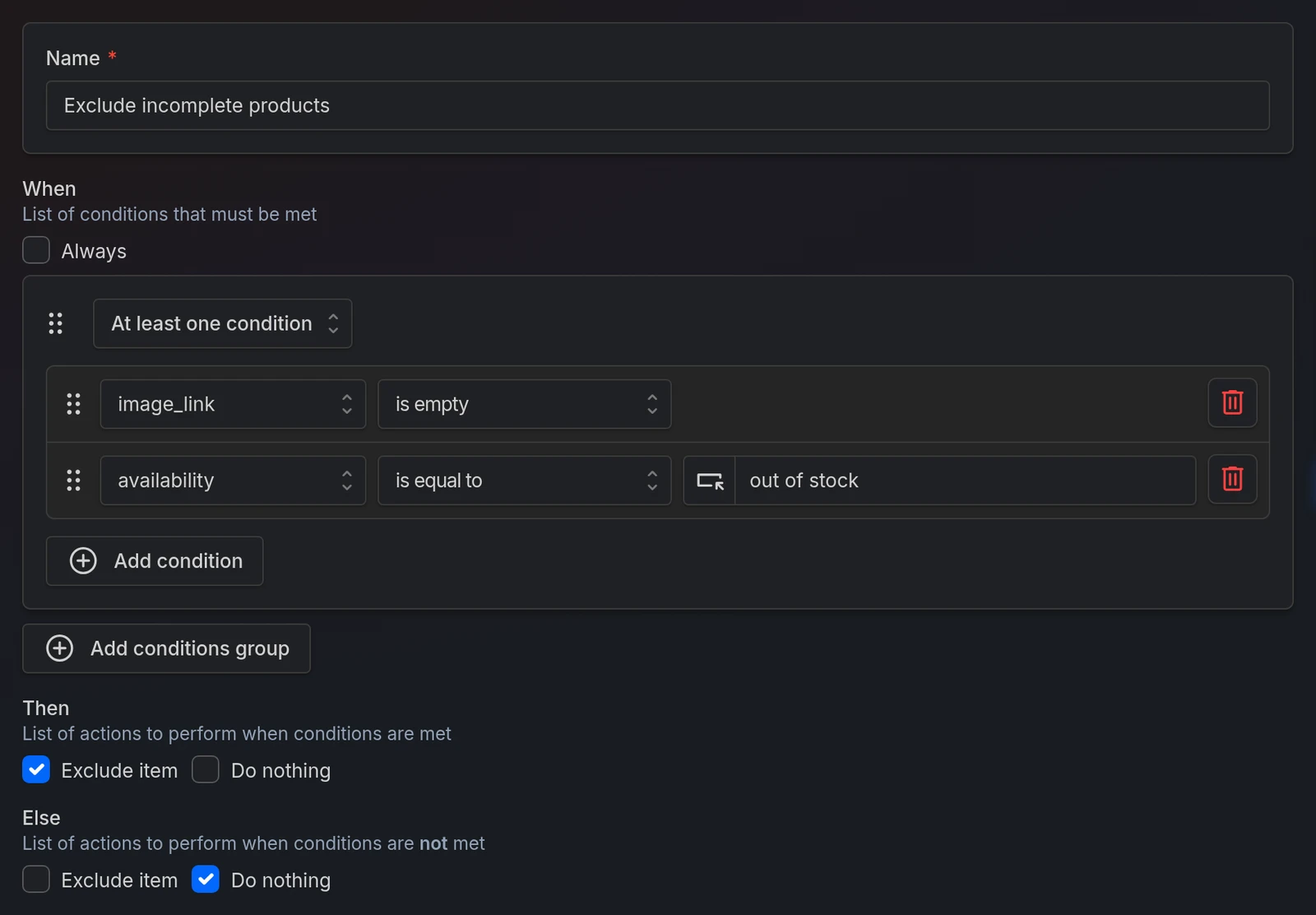
Actions cover most of what you'd want: copy from another field, set a value (with {{field}} placeholders), slice, truncate, search and replace, count characters or words, 17 text transforms (lowercase, strip HTML, remove accents, encode URL…), arithmetic, rounding, random numbers and number formatting, discount price and percent, and a set of list actions for splitting, joining, picking, sorting, counting and deduplicating.
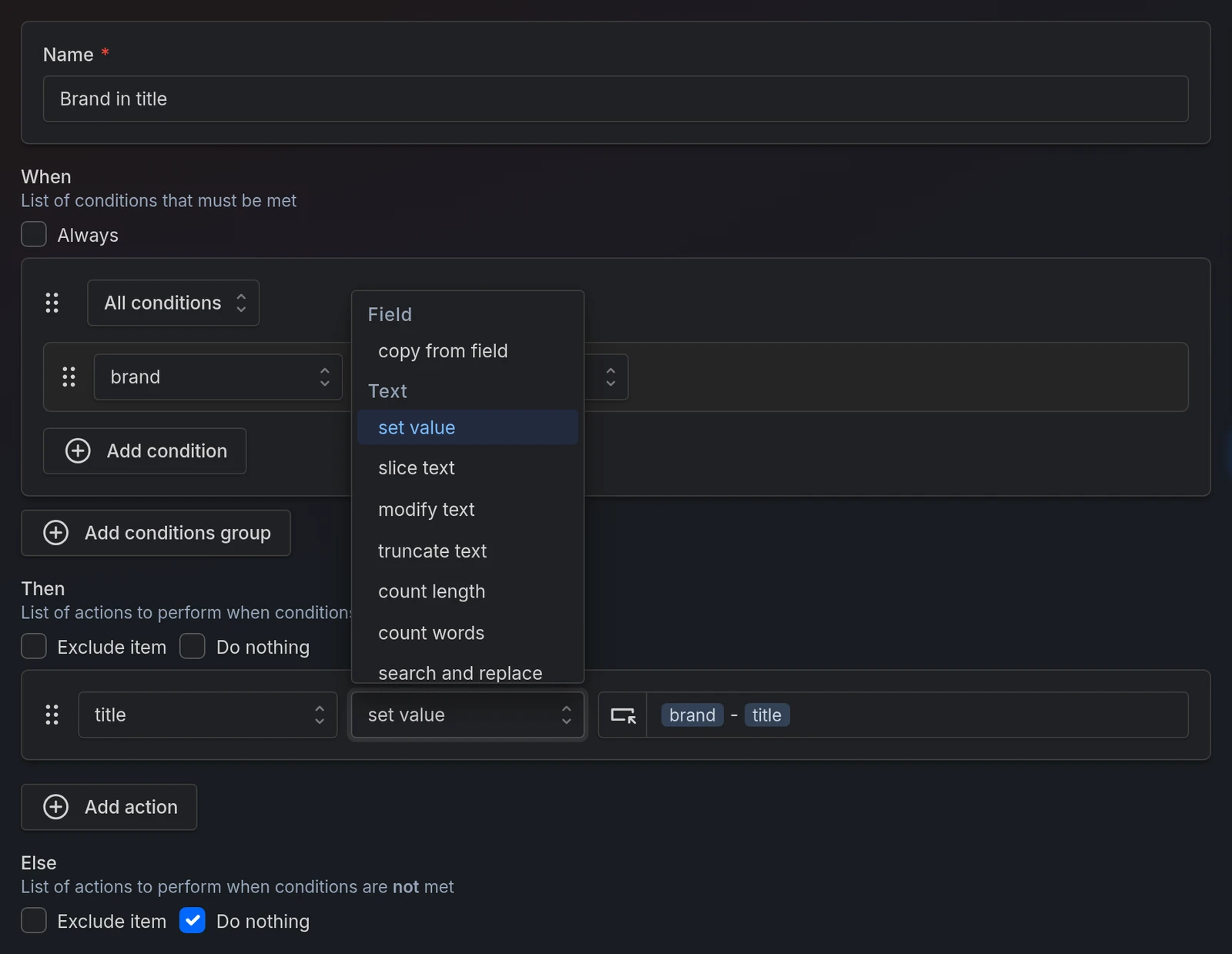
Order matters. Rules run top to bottom, and a rule can use a field an earlier rule created. Drag them in the right column to reorder. The same goes for the actions inside a rule.
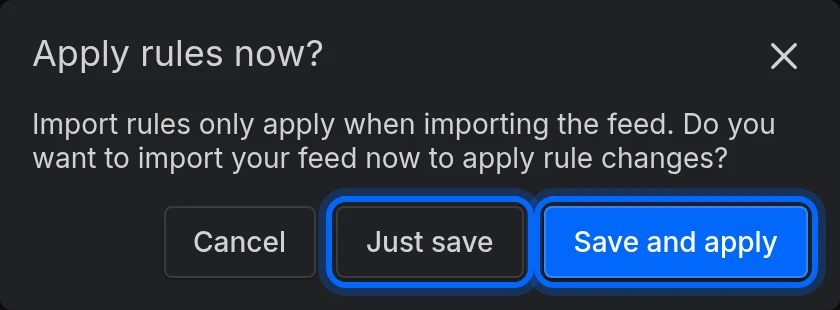
Saving export rules saves straight away. Saving import rules asks: Just save, or Save and apply — which runs an import right away so you can see the result.
Careful with these
Else + Exclude item excludes everything that doesn't match. That's the fastest way to empty a feed by accident. An empty feed isn't an error — the channel will read it as "delete all my products".
Mixed And/Or across three or more groups doesn't read like maths. Groups are checked top to bottom, and checking stops at the first And that follows a false result, or the first Or that follows a true one — the groups after it are never looked at. So A Or B And C is true whenever A is true, and A And B Or C is false whenever A is false. Keep each rule to a single kind of join, and use several simple rules instead of one clever one.
A rule pointing at a field that no longer exists goes wrong, silently. Most conditions stop matching, so it can run its Else on every product — but is empty is true for a field that isn't there, so its Then runs on every product instead: when the brand is empty, exclude the product would empty the feed. It still looks fine in the editor — the field name still shows in its picker and saving succeeds. If you rename a field on your catalog, or your supplier renames a column, come back and check your rules.
Invalid rules don't block a save and don't warn: they just quietly do nothing. If a rule seems to have no effect, that's the first thing to suspect.
Writing rules with AI
Generate rules with AI, describe what you want, press Generate rules.
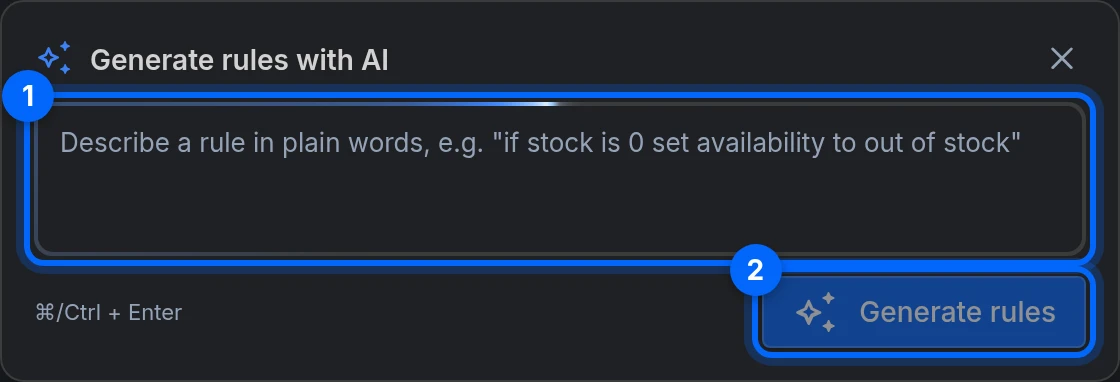
It rewrites your whole rule list, it doesn't add to it. It's shown your current rules and told to return the complete updated list, so untouched rules normally come back unchanged. But it is rewriting: a misread request can drop rules. Read what comes back before you save.
The safety net only catches the total failures. If the model returns nothing, or something invalid, your rules are left exactly as they were and you're told Could not generate valid rules. A rewrite that's valid but wrong will be applied to the editor without complaint — nothing is saved until you press Save rules, so leaving without saving is your undo.
There's a daily limit, and free accounts also have a monthly one. Slow down means you hit the daily one — it resets tomorrow, not in a minute. Monthly limit reached is the free monthly one.
Reusing rules
Three ways, all of which add to your current rules rather than replacing them:
- Import rules from another feed (or catalog) — pick individual rules from the project's other feeds (on a catalog, from its other catalogs).
- Copy rules to clipboard / Import rules from clipboard — the same, but works across browsers and machines.
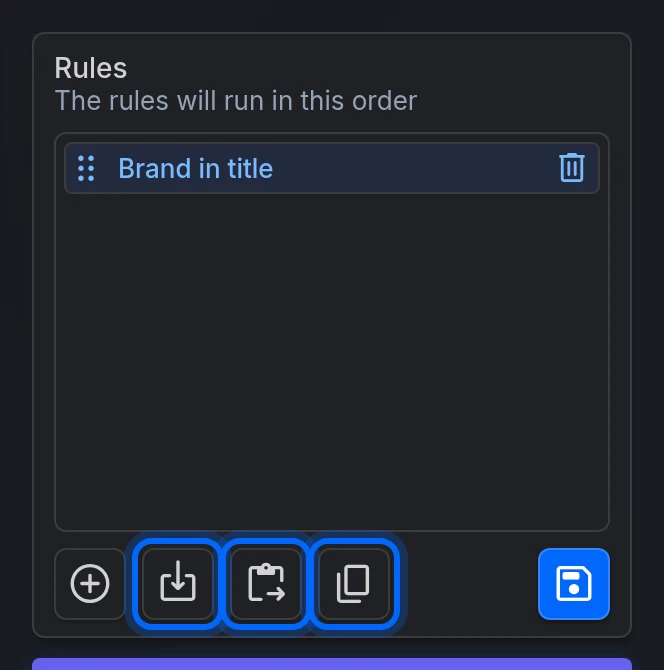
Nothing is saved until you press Save rules.
Rules pasted from elsewhere can reference fields this catalog doesn't have. They'll look correct in the editor — the missing fields are added to the pickers as custom fields — but they'll do nothing. Check the fields after pasting.
Feed rules can create fields
An export rule writing to a field name your catalog doesn't have creates that field on the feed. That's how you invent a value a channel wants but your data doesn't hold. After saving, use Go to fields (Save & go to fields while you're still creating the feed) to map it into your output.
The reverse is worth remembering: deleting a rule can remove a field your feed's mapping relies on.
Common issues
| Issue | Solution |
|---|---|
| My rule does nothing | Check the field still exists in the catalog. Invalid rules are saved without a warning and do nothing. |
| My import rule hasn't changed anything | Import rules only apply when the catalog imports. Use Save and apply, or wait for the next import. |
| My feed went empty | Look for an Exclude item, especially on an Else branch. |
| A rule works but the one after it doesn't | Order. A rule that excludes a product stops every later rule for it. |
| And / Or across groups behaves oddly | Checking stops at the first And after a false result or the first Or after a true one. Split into simpler rules. |
| The AI dropped rules I wanted to keep | It rewrites the whole list. Leave without saving to get them back. |
| I pasted rules and they do nothing | They reference fields this catalog doesn't have. |
| I can't find set template | It only exists on a feed's export rules. |
Ready to try it?
Create your account and follow the guide with your own catalog.