 Catalogs
 How to map your catalog fields
The catalog's Fields tab: imported field vs catalog field, the field types and subtypes, why Item ID and the main image matter, the decimal separator on prices, when a change needs a re-import, and why a renamed column in your source file loses its mapping.
Your source file has whatever column names your shop or supplier decided on: foto_principal, PVP, art_nr. AdMotion works with a standard vocabulary instead — image_link, price, id — so that rules, sets, templates and feeds can be written once and work with any source.
The Fields tab of a catalog is where those two worlds meet. It's worth ten minutes after your first import, because most of what feels broken later starts here.
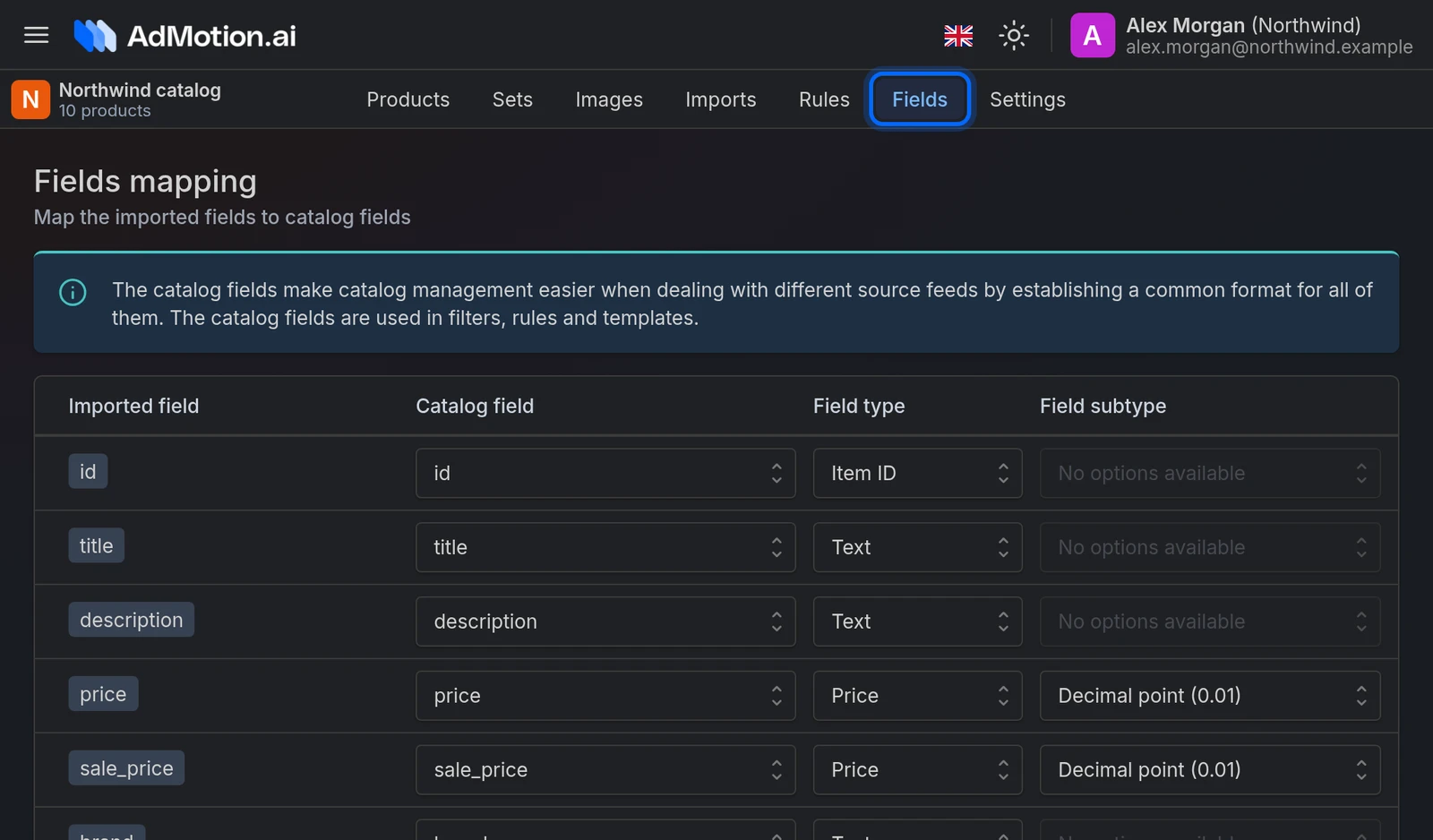
What the screen shows
Each row is one column from your file:
- Imported field — the column name exactly as it appears in your source. You can't change it here; it comes from your file.
- Catalog field — the standard name AdMotion will use for it from now on. This is the name you'll pick in rules, sets and templates.
- Field type — what kind of data it holds.
- Field subtype — a detail that depends on the type.
We map these automatically on the first import, reading each column's name and a few of its values. It's usually right, but it isn't magic — check it.
Field types
| Type | What it's for |
|---|---|
| Item ID | The unique identifier of each row. Exactly one field should have it. |
| Group ID | Shared by variants of the same product. Only offered if it's switched on for your project. |
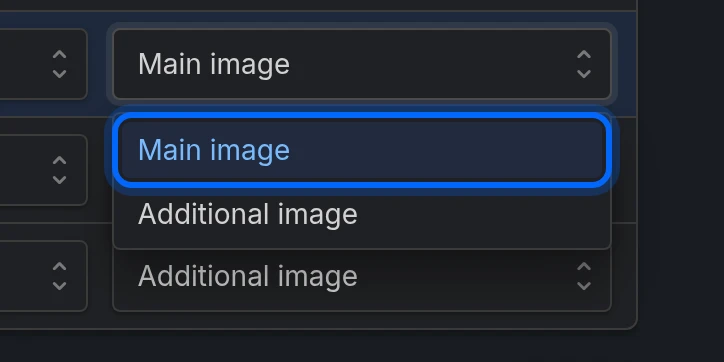
| Image | A single image URL. Its subtype says whether it's the Main image or an Additional image. |
| Image list | One column holding several image URLs together. We split it into separate images for you. |
| Number | A numeric value. Its subtype says how to read the decimals. |
| Price | A price. Same decimal subtype as Number. |
| Text | Everything else. |
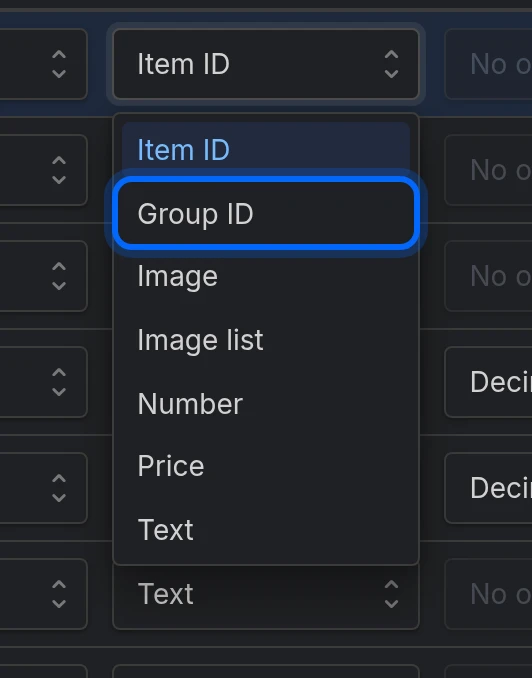
Two names can't share the same Catalog field — once you use title, it greys out everywhere else. Types aren't protected the same way, so read the next section carefully.
The four things to check first
1. Item ID. This is the single most important field in your catalog. Get it wrong and we can't tell one import from the next: no new/changed/deleted counts, no history, and rules that act on changed products stop making sense. Pick a column that is genuinely unique and never empty.
Two fields set to Item ID won't both stick. Nothing stops you choosing it twice, but on save the first one wins and the second silently becomes Text. If a type doesn't seem to save, this is why.
2. The main image. "Main" literally means the first image, and it's what templates and the background remover use. If no field is marked Main image, whichever image happens to come first becomes the main one — which is how you end up with a template rendering the wrong picture. Exactly one image field should be Main image.
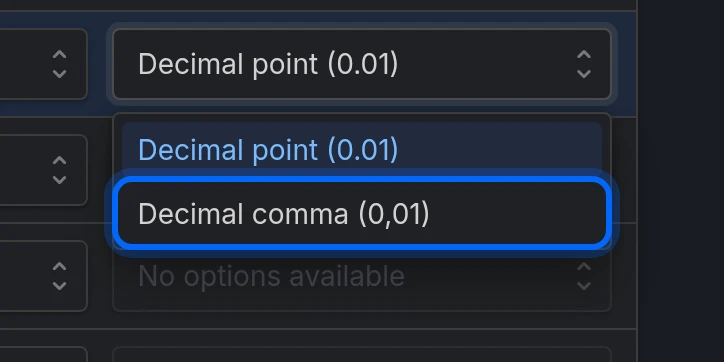
3. The decimal separator. This is the most common silent mistake in the whole product. Prices and numbers default to Decimal point (0.01). If your file writes 1.234,56, you must switch to Decimal comma (0,01) by hand — we don't detect it. Get it wrong and 1.234,56 is read as 1.23456, so every rule comparing prices quietly misbehaves while looking fine on screen.
4. Names that look like raw headers. Every row is always mapped to something, so there's no "unmapped" list to check. A column we didn't recognise simply keeps its own name and lands under Custom fields. Scan for names that look like they came out of your file, and remap the ones that matter.
Naming fields yourself
The Catalog field dropdown offers about 77 standard names, grouped by purpose — basic data, price and availability, category, identifiers, details, shipping, tax, custom labels and so on. Pick from these whenever one fits: they're what channels expect, and what our automatic mapping to each channel is built around.
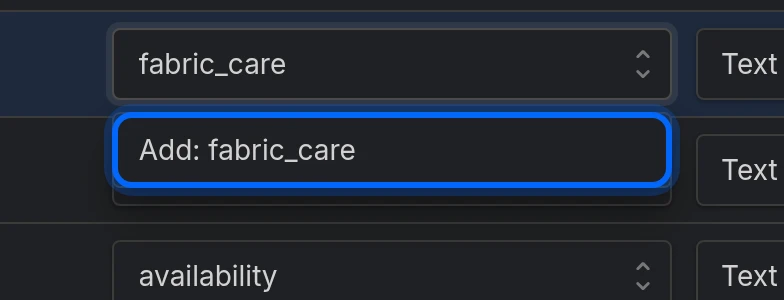
If nothing fits, type your own name and pick Add: your-name. It'll live under Custom fields and works everywhere a standard name does.
What happens when you save
Saving stores the mapping. It doesn't re-import anything, and most changes take effect straight away:
| Change | When it takes effect |
|---|---|
| Decimal subtype on a Price or Number | Immediately — even on already-imported products. |
| Main image / Additional image | Immediately. |
| Item ID or Group ID | Stored now, but change detection and variant counting only pick it up on the next import. |
| Switching a field to Image list | Needs a re-import. Until then the individual images don't exist yet. |
The row order is saved too, and it matters — dragging rows around changes the order fields come out in downstream. It doesn't survive the next import, though: each import puts the rows back in your file's column order. Don't reorder just to tidy up.
Your manual choices are safe — with one exception
Once you've saved this screen, later imports leave your names, types and subtypes alone. Automatic mapping only ever touches fields it hasn't seen before: the first import, or a genuinely new column. It never overwrites what you set by hand.
The exception is worth knowing, because it's silent:
If your supplier renames a column, its mapping is lost. We recognise a column by its name in your file. When
foto_principalbecomesmain_photo, that's not the same field being renamed — it's an old field disappearing and a new one arriving, which then gets mapped automatically from scratch. Your type, subtype and name choices for it are gone, and any rule or template using the old catalog name stops resolving if the new column gets a different one.Whenever your source file's headers change, come back to this screen.
Group ID and your product count
Group ID marks variants of the same product. Setting it does two things: it's the field pre-filled to group variants by when a set keeps one variant per product, and it changes how you're billed — products sharing a group id count as one product against your plan, not one per variant.
If this field type isn't switched on for your project, it won't appear in the list.
Common issues
| Issue | Solution |
|---|---|
| A field's type reverts to Text after saving | Another field already has that type. Item ID and Group ID can only be on one field each — the first one wins. |
| Prices compare wrongly in rules, but look fine on screen | The decimal subtype. A 1.234,56 file needs Decimal comma (0,01). |
| A template shows the wrong picture | No field is set to Main image, so the first image is whatever came first. |
| My import counts look wrong, or there's no history | Check Item ID: it's missing, or it's on a column whose values repeat or are empty. |
| I mapped a column to Image list but the images aren't there | Run an import. Splitting happens at import time. |
| A rule or template stopped finding a field | Check whether the column was renamed in your source file. Its mapping doesn't survive a rename. |
| Lots of fields have odd names under Custom fields | They're columns we couldn't match to a standard name. Remap the ones you use. |
| I can't set Group ID | It isn't switched on for your project. |
Ready to try it?
Create your account and follow the guide with your own catalog.