 Account
 How to share a project with your team
Invite people to a project and control what they can touch: what the Catalogs, Feeds, Templates and Account permissions each unlock, how invitations are accepted, why a section may be missing from someone's menu, owners, removing people and leaving a project.
Questa guida non è ancora tradotta; la mostriamo in inglese.
A project is what you share. Invite people to it, and choose what each of them is allowed to touch — catalogs, feeds, templates, the account, or any combination.
Sharing is free. There's no limit on how many people you invite, and adding people doesn't affect your plan: it only meters catalogs, products and feeds.
Before you start
Two things to know before you send anything:
- Only the project's owner can invite people. The owner is whoever created the project.
- The person you invite must already have an AdMotion account. You can't invite an email address that hasn't signed up yet. If they're new, ask them to create an account first, then invite them.
Step 1 — Invite someone
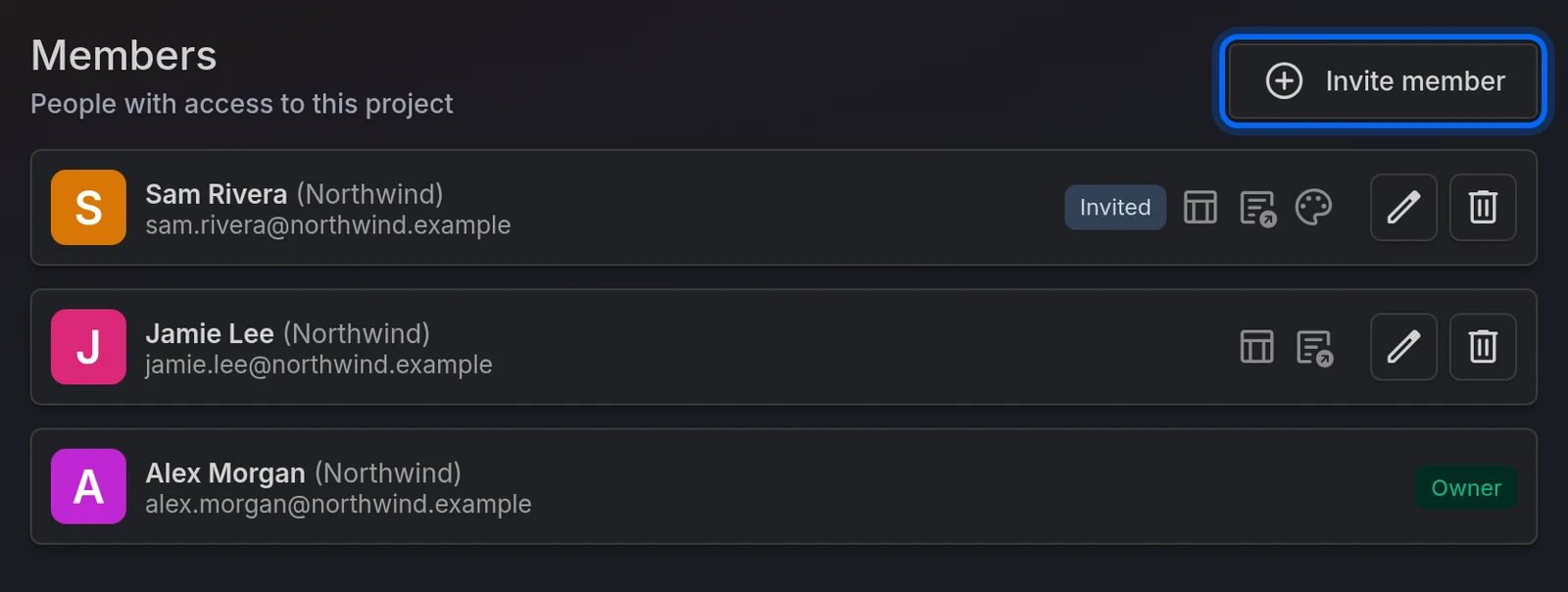
Go to Members in the side menu.
Click Invite member.
Type their address in User email.
Turn on the permissions you want them to have — see the table below. New invitations start with Catalogs, Feeds and Templates on, and Account off.
Click Invite.
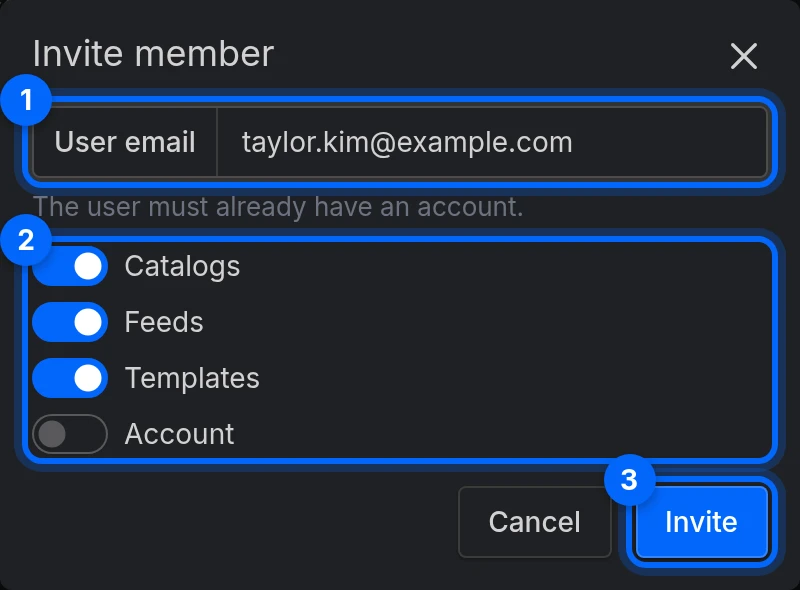
We email them a heads-up, in their own language. The invitation itself waits inside their account: they accept or decline it from the Projects screen.
They'll appear in your members list right away, with an Invited badge that goes away once they accept.
What each permission unlocks
The four toggles are named after the main thing they unlock, but a couple of them cover more ground than the name suggests:
| Permission | What it opens |
|---|---|
| Catalogs | The Catalogs section: every catalog and its products, sets, imports, rules and fields. |
| Feeds | The Feeds section: every feed and its settings, rules, fields, images and preview — including the feed URLs. |
| Templates | Much more than templates: the template editor and gallery, the image gallery, Brands, Fonts and the Background remover — plus AI Image Tagging, Meta Ads reports and Videos if they're switched on for your project. |
| Account | The members list, and billing: the plan, invoices and payment method. It also opens the project's Settings screen, where they can change where the project's notifications go and its billing details — but not its name or logo. |
Two things worth knowing before you hand these out:
Feeds doesn't include Catalogs. Someone with Feeds but not Catalogs can edit and publish the feeds that already exist, but can't open the catalog those feeds read from — nor create a new feed, because choosing its catalog needs Catalogs. That's a perfectly good setup for a channel manager — just be aware it's a real limit, not an oversight.
Account doesn't mean "can change the project". It lets someone manage billing and see who has access. Renaming the project, changing its logo, deleting it, and inviting or removing members stay with the owner, whatever you tick here.
Step 2 — They accept
The person you invited goes to Projects — the screen they land on when they open AdMotion. Pending invitations appear at the top, under Invitations, with Accept and Decline.
Accepting drops them straight into the project. Declining removes it from their list.
Declining isn't final. The owner sees Invitation declined in Activity, and can invite them again if they change their mind.
Checking what you're allowed to do
The Projects screen is also where anyone can see their own permissions: each project card shows whether you're the Owner or a Member, and lists the permissions you've been given.

That's the first place to look when something seems to be missing.
Why can't I see a section?
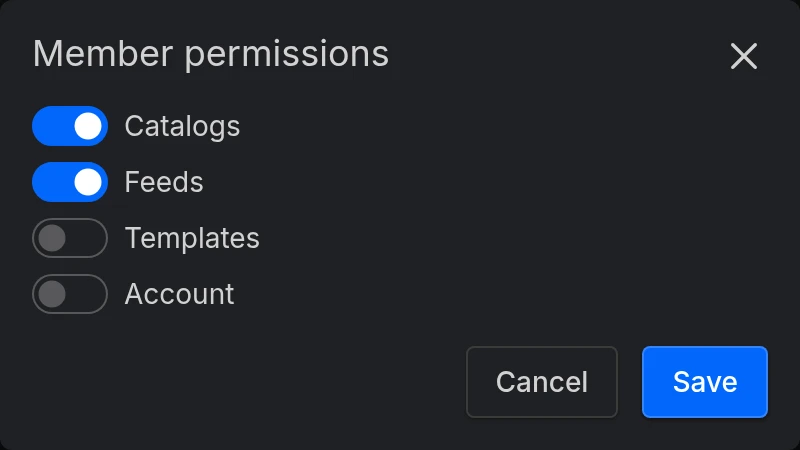
If a section isn't in your side menu, or a link you saved opens a Page not found screen, nothing is broken — you just don't have that permission. Ask the project's owner to turn it on in Members → the edit icon next to your name.
There is one exception worth checking first. If Videos, Meta Ads or AI Image Tagging are missing even though you have Templates, that isn't about permissions — those are switched on for the project as a whole. Everyone on the project sees the same thing.
Owners
Every project has exactly one owner: the person who created it. On top of every permission, the owner can rename the project, change its logo, delete it, and invite, edit and remove members.
Ownership can't be handed over, and the owner can't leave their own project. If the owner is going to stop using AdMotion, plan for it before they go.
Removing people, and leaving
To remove someone, open Members and use the remove icon on their row. They lose access immediately.
To leave a project yourself, go to Projects, open the menu on the project's card and choose Leave project. You'll lose access until someone invites you again. Owners don't have this option.
Either way, nothing is lost. Catalogs, feeds and templates belong to the project, not to the person who made them, so everything stays exactly where it is. Their entries in the activity log stay too.
Neither removing nor leaving sends any notification.
Working on several projects
If you belong to more than one project, switch between them from the picker at the top of the side menu, or from the Projects screen.
Each project has its own address (/p/…), which means different browser tabs can hold different projects at the same time without interfering with each other. If you juggle several clients, open one per tab and work across them.
Common issues
| Issue | Solution |
|---|---|
| "… doesn't have an AdMotion account yet." | They haven't created an AdMotion account yet, or you typed a different address from the one they signed up with. Ask them to sign up with that address, then invite them again. |
| They never got the invitation email | Ask them to check their spam folder. The email is only a heads-up, though: the invitation is waiting in their account, so they can open AdMotion and look at the Projects screen. |
| A section vanished from someone's menu | They don't have that permission. Turn it on in Members → the edit icon on their row. |
| A saved link shows Page not found | Same thing: no permission for that section. |
| Videos, Meta Ads or AI Image Tagging missing with Templates on | Those are switched on per project, not by permissions. |
| Someone with Feeds can't open a catalog | That's how the permissions split. Give them Catalogs too. |
| A member can't rename or delete the project | Only the owner can, regardless of permissions. |
Pronto a provarlo?
Crea il tuo account e segui la guida con il tuo catalogo.