 Templates
 How to use the background remover
Cut backgrounds from product photos across a catalog set: attaching a remover to a set is the whole integration, the human review loop, why the default behaviour excludes unreviewed products from your feeds, re-running on import, why replacing a file behind the same URL isn't picked up straight away, transparency and channels, and how it differs from the editor button.
The background remover cuts the background out of your product photos across a whole catalog set, so your ads show the product on your own design instead of on whatever the photographer's wall looked like.
How it fits together
This is the part worth understanding first, because it isn't obvious:
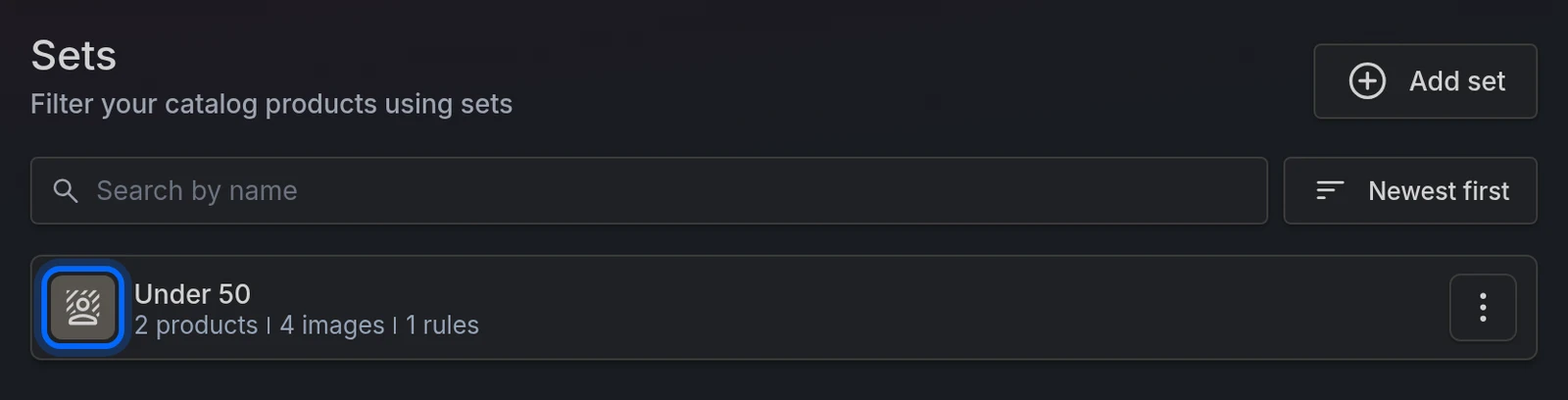
You attach a remover to a catalog set, and that's the whole integration. From then on, everything reading that set — your feeds, your templates, the images your ads use — gets the cut-out version instead of the original. The field keeps its name and its place. There is no new field to map, no second step, nothing to switch on afterwards.
You'll see it on the Sets list: a set with a remover attached shows a different icon.
Creating a batch
Go to Background remover in the side menu and click Select new set.
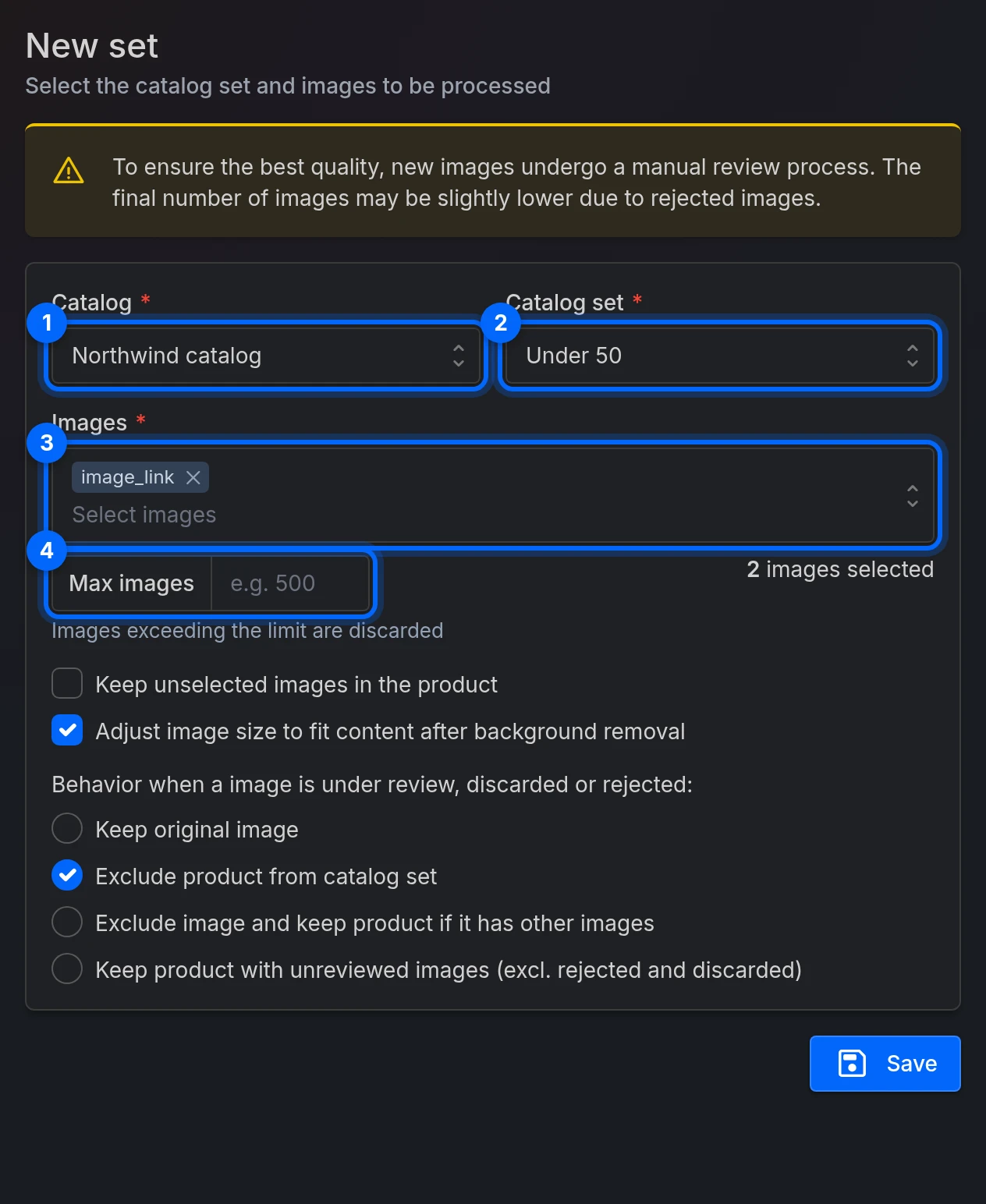
Choose the Catalog, then the Catalog set whose products you want processed.
Pick which Images to process — your catalog's image fields. The count of images updates as you choose.
Set a Max images if you want a ceiling. Anything over it is discarded, not queued.
Decide the two options below.
Save.
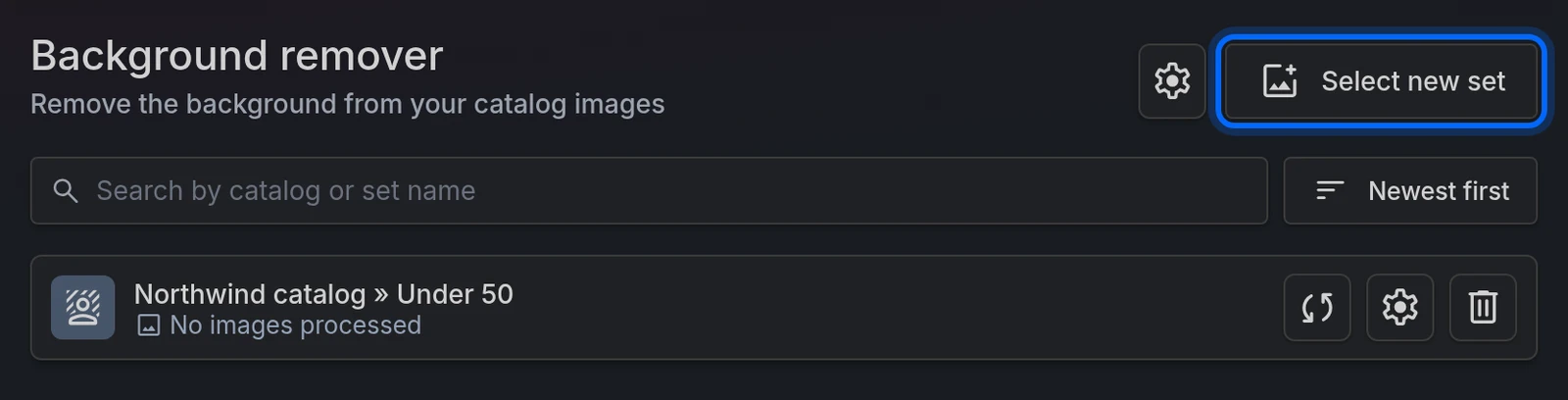
There's no quality or model setting. Every image is processed the same way, and then reviewed by a person before it goes live.
Adjust image size to fit content
Adjust image size to fit content after background removal is on by default. It crops away the empty space left behind, so the product fills the frame.
That changes the image's aspect ratio. If you're feeding a channel that expects a fixed ratio, or a template built around one, turn it off.
The setting that matters most
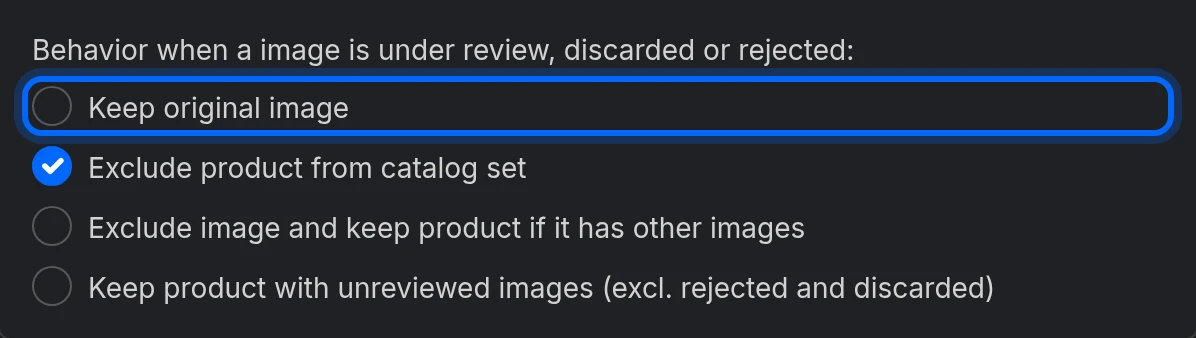
Behavior when a image is under review, discarded or rejected: decides what happens to a product whose cut-out isn't approved yet. It defaults to Exclude product from catalog set.
Read that again before your first batch. A new batch starts with everything unreviewed. With the default, every product in the set is excluded from your feeds until someone reviews its images — so a live feed can go from full to nearly empty while you wait, and channels read that as "delete my products".
If the set is feeding a live channel, pick Keep original image instead. Your ads keep working, and each product switches to its cut-out as it gets approved.
The other options are Exclude image and keep product if it has other images, and Keep product with unreviewed images (excl. rejected and discarded), which uses cut-outs before anyone has reviewed them.
While it runs
The batch shows Processing, then In review, with counters for approved, rejected and to-review. You can't change its settings while it's processing.
There's no progress bar and no notification when it finishes — check back on the list.
Reviewing
Every image is reviewed by a person before it's used, unless you chose Keep product with unreviewed images (excl. rejected and discarded). That's deliberate: automatic cut-outs are good, not perfect, and a bad one on an ad is worse than no cut-out at all.
The Reviewer tab shows the pending images as a grid. It only appears if it has been enabled for your project; otherwise our team reviews your images for you. For each one, toggle between Rembg image and Original image, then Approve or Reject. Approve page takes the whole page at once. Nothing is committed until Save revieweds.
Two extras worth knowing:
- Edit image opens a brush editor for fixing a cut-out by hand instead of rejecting it.
- Drag a PNG onto a card to replace the result with your own.
If several people review at once, you see each other's marks live.
Rejecting doesn't retry. A rejected image just stops being used — the product then follows whatever you chose in Behavior when a image is under review, discarded or rejected. To give it another go, send it back from the Rejected tab with Send to reviewer, then fix it there with Edit image or your own PNG. Sending it back re-queues the same image, it doesn't reprocess it.
Keeping up with your catalog
Removers re-run automatically whenever their catalog imports. New and changed images go into the review queue on their own.
That's convenient, and it has a consequence: after a big import, check the review queue. New products are sitting unreviewed, and with the default behaviour they're out of your feeds until someone looks at them.
The image's URL is its identity. Change a product's image URL and we process the new one. Replace the file behind the same URL and it isn't picked up straight away: a cut-out is only re-checked once it's more than a week old, on the remover's next run, and only if what your server reports says it changed: a date no older than the cut-out, and a different file size. A new photo of exactly the same size, or a server that reports neither, is never picked up; until then, the old cut-out keeps being served. If your shop overwrites images in place, change the URL to force a reprocess.
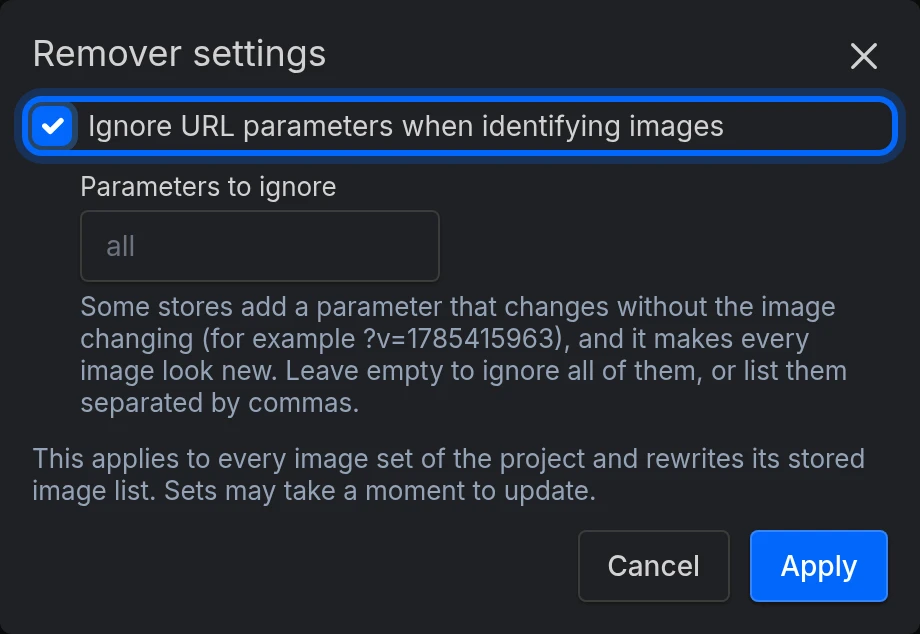
If your shop adds a parameter to image URLs that changes without the image changing (such as
?v=…), every image looks new on each import. Turn on Ignore URL parameters when identifying images in Remover settings, on the Background remover page.
Transparency, and what channels do with it
The result is a transparent PNG, and it's shipped to your channel exactly like that. Meta and Google will put it on their own background, which may not be what you want.
If you want a specific background, that's what templates are for. Build the design around the cut-out product image — that's the whole point of doing this.
The button in the template editor is something else
The template editor has its own Remove background button. It's a preview: it runs in your browser, on one image, so you can see how a design looks with the background gone. It isn't saved and it never reaches a feed by itself.
Use the editor's button while designing. Use this section when you want it for real, across a set.
If the image already came from the remover, the editor's button won't appear — there's nothing left to remove.
Deleting
Deleting a remover leaves the set alone; its images go back to the originals.
Deleting the set deletes the remover with it. Processed images are kept, so if you attach a remover to the same images again later, the work you already reviewed is matched again immediately.
Common issues
| Issue | Solution |
|---|---|
| My feed emptied after creating a batch | The default behaviour excludes unreviewed products. Switch to Keep original image, or review the queue. |
| Products disappear after every import | Same cause. New images arrive unreviewed and the default excludes them. If your shop changes a parameter in its image URLs on every import, turn on Ignore URL parameters when identifying images. |
| I replaced a photo but the old cut-out is still showing | We identify images by URL. With the same URL, a cut-out is only re-checked once it's over a week old. Change the URL to reprocess it now. |
| The cut-out has the wrong shape | Adjust image size to fit content after background removal crops to the product and changes the ratio. Turn it off. |
| My ads show the product on a white/grey background | That's the channel putting a transparent PNG on its own background. Use a template if you want to control it. |
| I don't see Remove background in the editor | The image is already cut out. |
| I rejected an image and nothing happened | Rejecting only stops it being used. Send it back from Rejected, then fix it with Edit image. |
| The batch is stuck on Processing | It resets itself if it stalls. If it's still stuck later, contact support. |
Ready to try it?
Create your account and follow the guide with your own catalog.